How agencies automate video creation: A complete guide



Summarize with





Client demand for video keeps climbing. Your team is already stretched. And somewhere between the third and thirtieth version of the same ad creative, someone on your team starts wondering if there's a better way to do this. There is.
Video automation is the process of using templates, structured data, and software to generate multiple unique data-driven videos without manually editing each one. Instead of opening After Effects for every variation, you build a single template, connect it to a data source (a spreadsheet, a CRM export, a database), and let the software handle the rest. That's how agencies automate video creation, and it's the difference between producing 10 videos a week and 1,000.
This guide covers the real use cases where automation pays off, a tool-specific step-by-step workflow you can follow today, and a clear framework for deciding when automation makes sense for your agency.
TLDR
- Video automation uses templates and data (spreadsheets, CSVs, APIs) to generate hundreds of unique videos without manually editing each one, turning 10 videos per week into 1,000+.
- The biggest time savings happen in post-production. Once a template is built, bulk rendering, caption generation, format adaptation, and delivery can all run automatically.
- Common use cases include performance ads, personalized videos, localization, sports highlights, and digital signage.
- The base workflow is to build an After Effects template with named dynamic layers, upload it to a platform like Plainly, connect your data source, batch render, and auto-deliver.
- Automation works best for repeatable video formats where the structure stays the same and only the content changes. It is not suited for one-off, bespoke productions.
Why video automation matters for agencies
Video automation replaces the most repetitive part of production (the part where your team manually swaps out headlines, images, and colors across dozens of identical compositions) by connecting reusable templates to data inputs like spreadsheets, APIs, or databases. Whether agencies use CSV uploads or API to create workflows, the result is the same: hundreds of dynamic video versions rendered from a single design. A small team can produce what would otherwise require more editors or outsourced help.
What parts of video creation agencies automate
Automation touches every stage of video production, but the value isn't evenly distributed. Pre-production and production benefit from partial automation. Post-production is where agencies recover the most time by far.
Pre-production
AI writing tools can help with scriptwriting, brief generation, and shot list creation. Agencies standardize creative briefs across client accounts using templates and structured workflows, cutting the back-and-forth that eats into project timelines.
That said, automation here is partial. Human creative judgment is still needed for strategy, messaging, and the decisions that make a campaign resonate with the people.
Production
This is where template-based motion design in After Effects lays the groundwork for everything downstream. The actual filming or design phase still requires human creative work (someone needs to build the layout, choose the animation style, and set the timing).
When a motion designer builds a template with clearly defined dynamic layers, meaning the text, images, colors, and footage that swap between versions, they're creating the foundation for automated rendering at scale. Batch asset preparation fits here too, covering resizing images, formatting logos, and organizing footage libraries so the data-driven workflow runs smoothly.
Post-production
Post-production is where all that prep work pays off. Agencies go from one template to hundreds of finished videos in roughly the time it used to take to edit a single one. Once the template exists and the data is ready, agencies can render hundreds of video variations from one file using structured data from a spreadsheet or database. That's batch video editing at scale, with almost no manual work involved.
But rendering is just the start. It handles caption generation, thumbnail export, and format adaptation, producing horizontal, square, and vertical versions from a single template with no re-editing required. Finished videos are then pushed automatically to cloud storage, review platforms, or publishing channels.
This is the stage that lets agencies scale video production from dozens to thousands without scaling their team.
Common use cases where agencies automate video creation
Different agency verticals automate different content types. Here are the five most common.
- Performance ads - Hundreds of ad variations with different hooks, CTAs, and formats are automatically generated and tested across paid channels like Meta and TikTok.
- Personalized videos - Automated pipelines push individually tailored videos to thousands of users at once, whether that's a fintech brand sending year-end financial recaps, a SaaS platform summarizing monthly usage per account, or a fitness app delivering weekly progress updates.
- Video localization - A single master video is automatically dubbed, subtitled, or lip-synced into multiple languages to serve different regional markets without manual reediting.
- Sports videos - Highlight reels, match recaps, and stat-driven clips are auto-generated from live game data and footage within minutes of a match ending.
- Digital signage - Restaurant chains and retailers automatically push updated video content across hundreds of screens in different locations, adapting promotions, pricing, and visuals to each store's local context.
Step-by-step guide: how to start automating video creation as an agency
This section walks through a real, reproducible workflow using After Effects (the industry standard for motion design in professional video automation) and Plainly (the video automation platform that connects your templates to data and handles rendering at scale).
Follow these steps, and you'll have a working automation pipeline.
Create your video template
Build your video in After Effects the way you normally would (layout, animation, timing, transitions). The only extra step is deciding which elements will change between video versions. These become your dynamic layers.
Name each dynamic layer with a consistent prefix so Plainly can detect them automatically later. For example, if you use the prefix "edit," a text layer for the headline becomes editTitle, an image layer becomes editImage, and a color control becomes editColor.
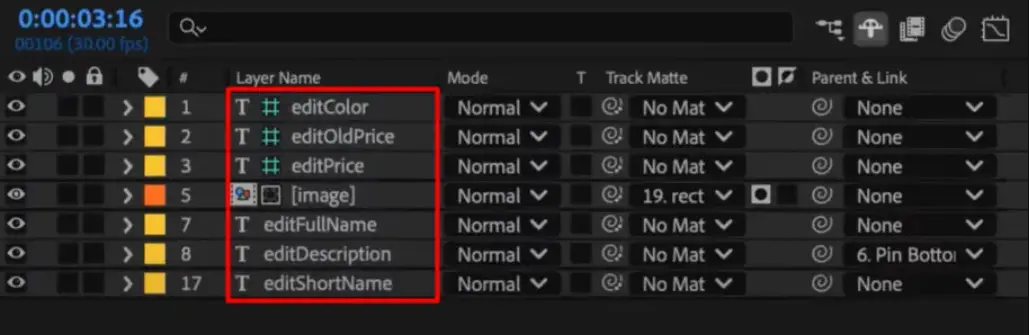
Elements you can make dynamic:
- Text - Names, titles, prices, stats, dates, headlines
- Images - Logos, product photos, avatars
- Video clips - B-roll, product shots, UGC footage
- Colors - Backgrounds, brand accents
- Audio - Voiceover files, music tracks
Keep the fixed structure clean and well-organized. Only the elements that need to change should be marked as dynamic. When you're done, zip the entire After Effects project folder (the .aep file and all linked assets) into a single file. That's what you'll upload next.
Upload your video template to Plainly
Head to the Plainly dashboard, go to Custom projects, click Upload, give it a name, and upload the .zip file. Once it's processed, create a template from the project.

Click Auto-generate, select the Prefix option.
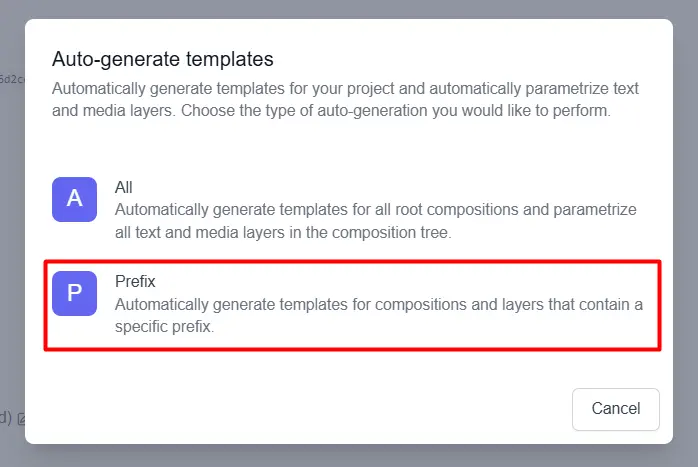
Now, in the next tab, enter the prefix you used in your After Effects project (e.g., "edit"), and click Generate. Plainly scans the project and automatically detects every dynamic layer that matches your prefix. This is exactly why, in the previous step, we add the prefix, so that Plainly can immediately detect the layers you want to be dynamic.

If you need to fine-tune anything, open Parametrize Layers to review, add, or adjust dynamic elements.
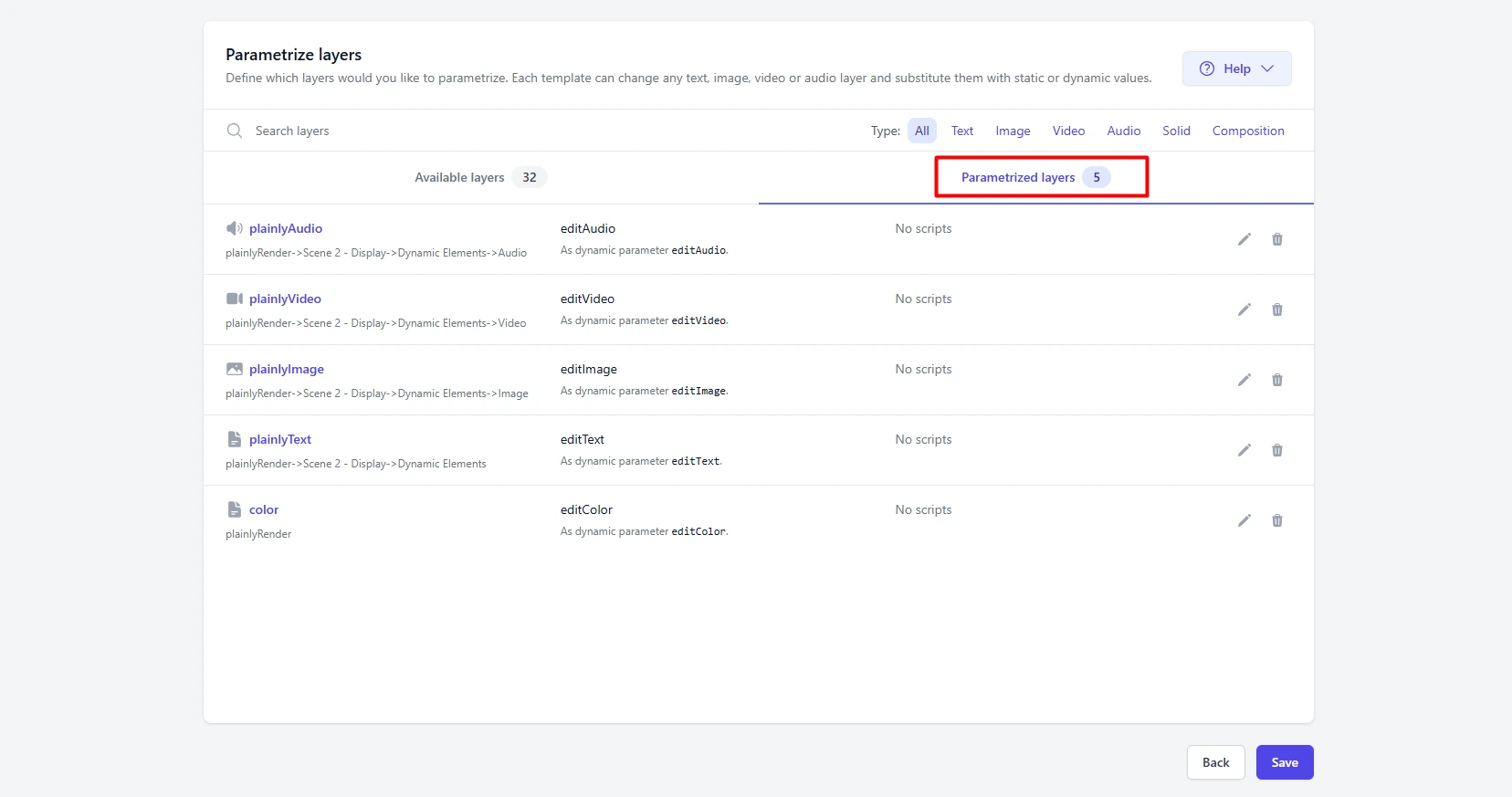
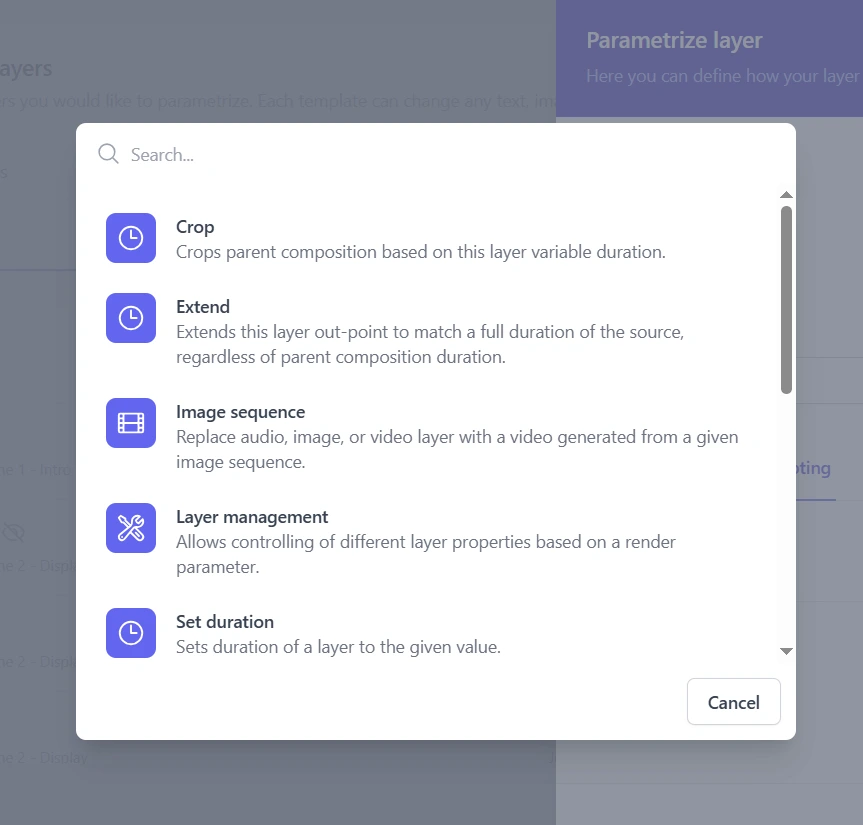
For more advanced control over how layers behave, use Layer Scripting. It lets your project adapt timing, cropping, and extensions for each render based on the data you provide, which is especially useful when working with footage of different lengths.
One project can hold multiple compositions, so if you need horizontal, square, and vertical formats, create all three from the same upload and render every format from a single CSV in one workflow.
Connect your data
Plainly connects to Google Sheets, Microsoft Excel, Airtable, and direct API calls. For this guide, we'll use CSV because it works universally, requires no account connections, and anyone can create one.
The first row in your CSV is your header row, with column names that exactly match the dynamic layer names from After Effects, like editTitle, editImage, and editColor. Every row after that represents one complete video version, with every field filled in with your data.
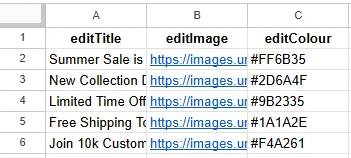
Columns can contain text values, color hex codes, image URLs, video file URLs, and audio file URLs. Media URLs need to be publicly accessible so Plainly can fetch them.
Run a small test batch of three to five rows before committing to a full production run. This lets you catch any issues before rendering all your videos.
Start rendering your videos in bulk
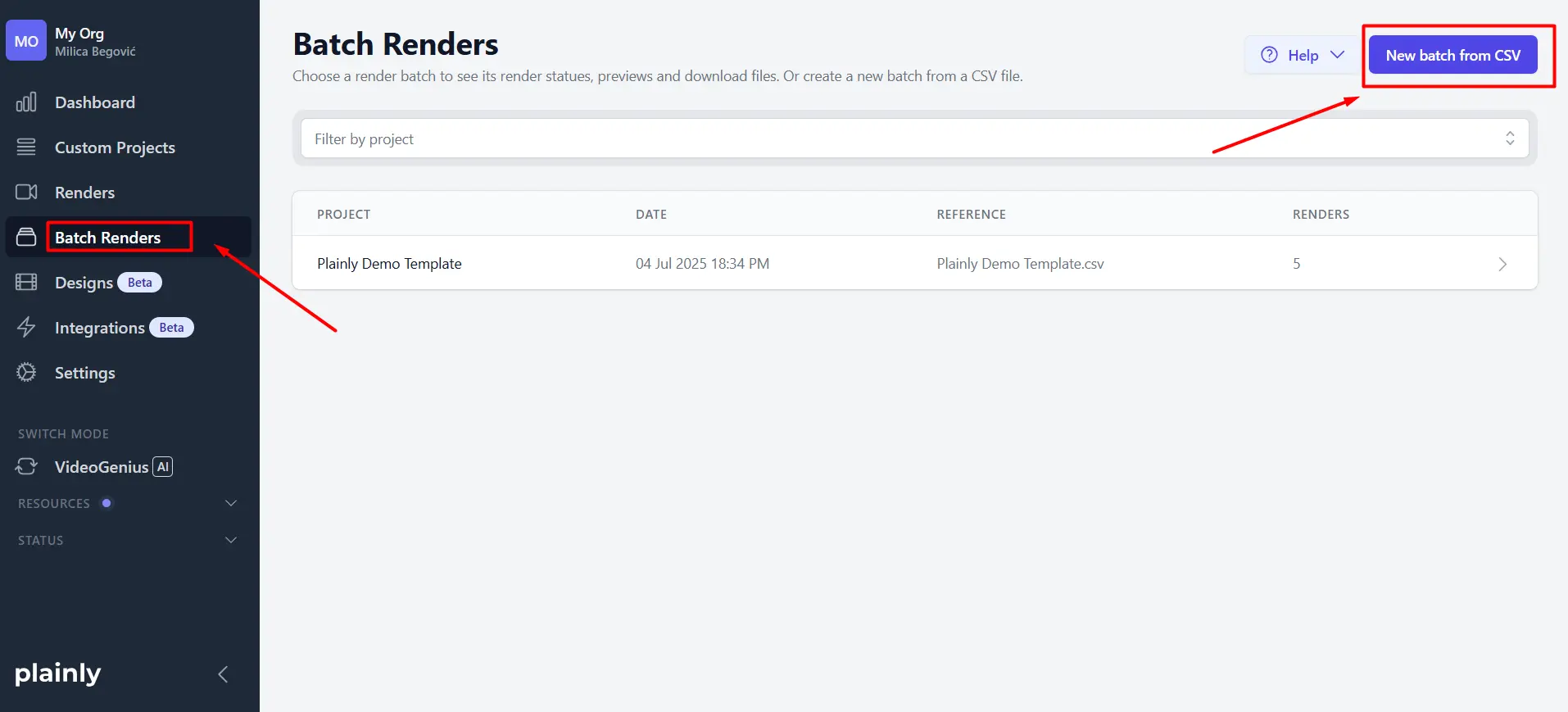
In Plainly, go to Batch Renders and click New batch from CSV.
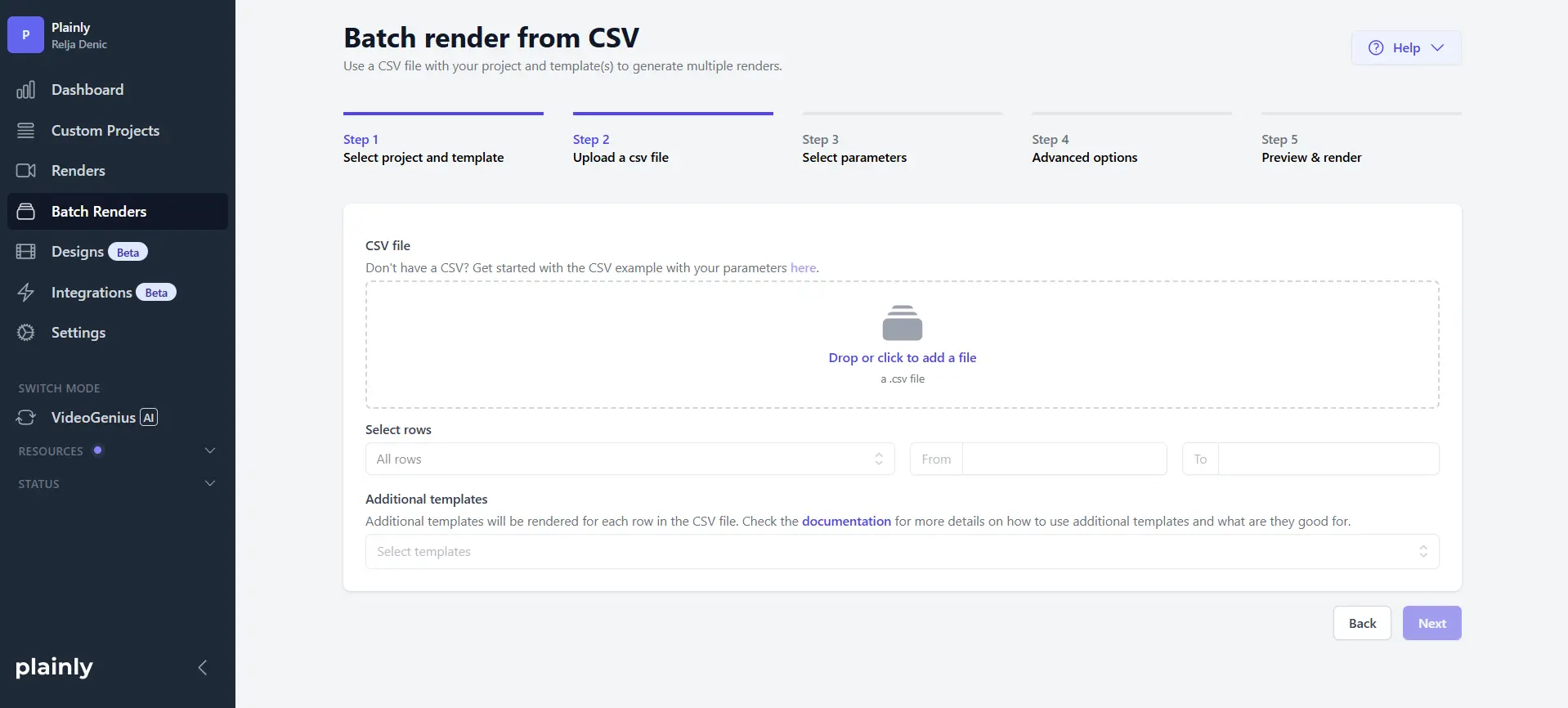
Upload the CSV file you just created.
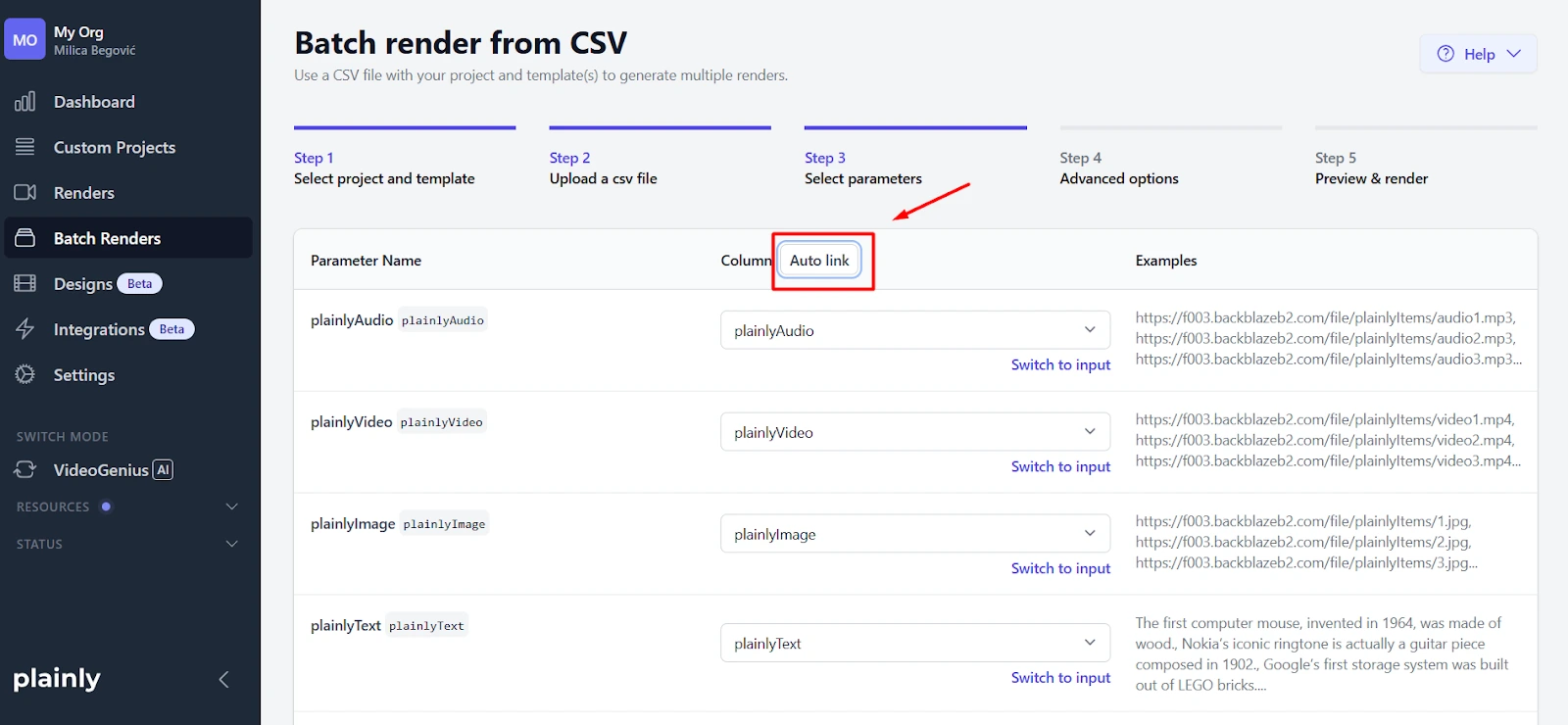
Now, map your parameters by matching each CSV column to its corresponding template layer. If your column names match the layer names exactly (which they should, if you followed the steps above), just click Auto-link and Plainly links layers with the columns automatically.
After that you can configure any optional settings:
- Output Format - Controls how your rendered video is exported, including quality settings, resolution presets, and how the file behaves when downloaded.
- Webhook - Allows you to trigger an automated HTTP call to a specified URL when a render finishes, fails, or receives invalid input.
- Integrations - Let's you manage third-party integrations for a render, like the option to skip them entirely or pass through custom values.
- Captions - Enables you to add styled, positioned subtitles to your video using an external .srt file.
- Thumbnails - Generates PNG or JPG preview frames from your video at set intervals or specific timestamps.
- Watermark - Overlays a custom image onto your rendered video for branding or protection purposes.
- Project - Gives you the option to collect and upload the modified After Effects project files used in the render.
Once your options are set, click Render.
Download your videos
Plainly gives you a few ways to get videos out, and the right one depends on how much you're producing:
- Small batches - Download individual videos straight from the dashboard.
- Medium batches - Grab everything as a single .zip file.
- Automatically deliver videos - Send files directly to Google Drive or Dropbox, route them through Frame.io for client review, or push finished videos straight to YouTube, Vimeo, and similar platforms.
- Fully automated pipelines - Use the Plainly API to send videos anywhere, automatically. No manual steps, no one sitting at a computer waiting to hit download. Agencies use this to build video workflows that run in the background while the team focuses on other things.
When video automation makes sense
It does not make sense for one-off, highly bespoke productions where every video is structurally different.
Automation makes the most sense when you're producing the same type of video at scale, the structure stays the same across versions, and the only thing changing is the content inside the video. If your team regularly builds 10 or more variations from the same template, pulling data from a spreadsheet, CRM, or database, the time savings add up fast, and the setup cost pays for itself quickly.
If your agency has a repeatable video type and a data source to match, Plainly is built for exactly this. Sign up for a free trial to test the workflow yourself, or book a demo for a walkthrough tailored to your specific use case.