How video automation for e-commerce product feeds works



Summarize with





Video automation for e-commerce product feeds helps you turn the product data you already have into videos you can use across your store, ads, email campaigns, social channels, and the overall video experience you give shoppers. Instead of creating a separate video for every product, you build one reusable template, connect it to your product feed, and let automation add the right product name, image, price, description, and CTA. Isn’t that the dream?
If you manage a growing product catalog, you know it is, and you already know how hard it is to keep video content up to date. In this guide, we’ll walk you through what ecommerce video automation is, why brands use it, and how you can scale video production using the industry standard, After Effects, and video automation superstar - Plainly Videos. Let’s get going!
What is video automation for e-commerce product feeds?
Video automation for e-commerce product feeds is the process of automatically turning product data into videos. Your product feed contains details like product names, prices, images, descriptions, categories, discounts, and URLs. So, a video automation platform uses that data to create product videos from a single, reusable template.
Here’s how that usually looks: You create one video template with dynamic fields. For example, one text layer pulls the product name, another pulls the price, and one image layer pulls the product photo. Then, when you connect your product feed, the automation tool creates a separate video for each ecommerce product in your catalog.
Let’s say you sell sneakers online. Your feed includes 500 products, and each product has a name, price, image, color, and product page URL. Instead of making 500 videos manually, you create one sneaker promo template. The platform then generates 500 unique videos, each with the correct sneaker image, product name, price, and CTA.
That’s the real value of e-commerce video automation: you keep the creative structure consistent, while the product details change automatically. It helps you create product videos at lightning speed, update them more easily, and create videos at scale without starting from scratch every single time.
Why e-commerce brands use video automation for product feeds?
It’s because product catalogs change faster than manual video production can keep up with. You know how it is; prices change, discounts come and go, new products launch, seasonal campaigns start, and bestsellers need fresh, engaging videos more often than your team can realistically keep up with.
This is the moment where you recognize that e-commerce video automation makes sense. You create the video structure once, connect it to your product feed, and generate product videos whenever your catalog or campaign changes. That’s how your product feed becomes a source of scalable content, not just a spreadsheet. So when you optimize, you can optimize fast!
Here are the biggest benefits in a list:
- You can create videos for large product catalogs - If you have 50, 500, or 5,000 products, you don’t need to make each product video manually. One template can generate hundreds or thousands of videos with the right product data.
- You keep product information accurate - Your feed can pull in product names, prices, images, discounts, descriptions, SKUs, categories, and product URLs. This helps you avoid videos with outdated prices or wrong product details.
- You launch campaigns faster - When your Black Friday sale, summer collection, or new product drop is ready, you can generate the marketing videos in bulk instead of waiting for every asset to be edited one by one.
- You make your video creative easier to update - If you want to change the CTA, design, animation, offer, or layout, you update the template and render a new batch of videos.
- You create more personalized product videos - You can make videos by category, price range, collection, location, language, or customer segment.
- You reduce repetitive creative work - Your team can focus on the template, messaging, and campaign idea instead of copying and pasting product data into hundreds of individual video files.
- You can use videos across more channels - Product feed videos can support paid ads, product pages, email campaigns, retargeting, marketplaces, and organic social content, helping shoppers understand products faster and convert faster. If your team is looking for the best ad creation tools for large product catalogs, an automation-first setup can feed several channels at once.
Best practices for video automation for e-commerce product Feeds?
The best product feed videos start with a clear template, clean data, and a simple creative structure. Automation can generate the videos, but your template and feed decide how useful those videos actually are to your future customers.
Here are a few best practices to follow:
- Start with one clear goal for each video - Decide what the video should do before you build the template. For example, you might want to promote a discount, introduce a new product, drive clicks to a product page, boost conversions, or highlight a specific collection.
- Keep your video template flexible - Build a template that works with different product names, image and video sizes, prices, and descriptions. Some products will have short names. Others will have long ones, and your design should handle both without breaking.
- Use only the product data you actually need - Your product feed may include dozens of columns, but your video probably needs only a few: product name, image, price, sale price, category, product URL, and CTA. We recommend keeping the video focused, especially for ads and social media. You can also use AI to shorten product descriptions, create CTA variations, or turn product attributes into clearer video copy before you render the full batch. These AI tools can help you prepare cleaner copy before Plainly turns that data into videos.
- Clean your product feed before rendering - Remove duplicate rows, fix missing images, check prices, review product visuals, and shorten long product descriptions. Clean data helps your automated videos look intentional and reduces the need for manual fixes later.
- Design for the channel where the video will be used - A product video for TikTok, Instagram Reels, YouTube Shorts, a product page, a paid ad, or any other short-form placement will need different dimensions, pacing, and CTAs. Start with the channel, then build the template around it.
- Use After Effects when you want the videos to stand out - If you want stronger motion, better transitions, branded animations, 3D effects, or a more custom look, build your template in Adobe After Effects. An e-commerce video automation platform like Plainly can then use that After Effects template to generate videos in bulk from your product feed, but more on that later.
- Leave room for variable text and images - Product names, prices, and descriptions change from item to item. Give dynamic text and image layers enough space, so the final video still looks good when the automation fills in different product data.
- Test with a small batch first - Render 5 to 10 videos before generating hundreds or thousands. We’ve seen this save teams a lot of cleanup time because small test batches reveal long names, missing images, wrong column mappings, and layout issues early.
- Create reusable templates for repeat campaigns - Build templates for common use cases like new arrivals, sale campaigns, abandoned cart videos, product recommendations, and seasonal promotions.
How product feed video automation works (A step-by-step guide)
It’s pretty easy when you look at it, but in plain words: you connect a reusable video template with structured product data, then render one video for each product automatically. Sound magical, doesn’t it? For this walkthrough, we’ll use Adobe After Effects, the industry standard, to create the video template and Plainly Videos to automate the video creation process.
Why AE? Besides from being the best option for template making, After Effects also gives you the most creative control over the final look of your product videos. And another thing! It works great with Plainly, which then takes that After Effects template, connects it with your product feed, and renders product videos in bulk. Let’s go over it from start to finish in a bit more detail.
Create your video template
Start by creating your product video template in After Effects. This template is the base design for all your automated videos. You can include product images, product names, prices, discounts, CTAs, brand elements, transitions, animations, and visual storytelling elements that make the product feel more memorable.
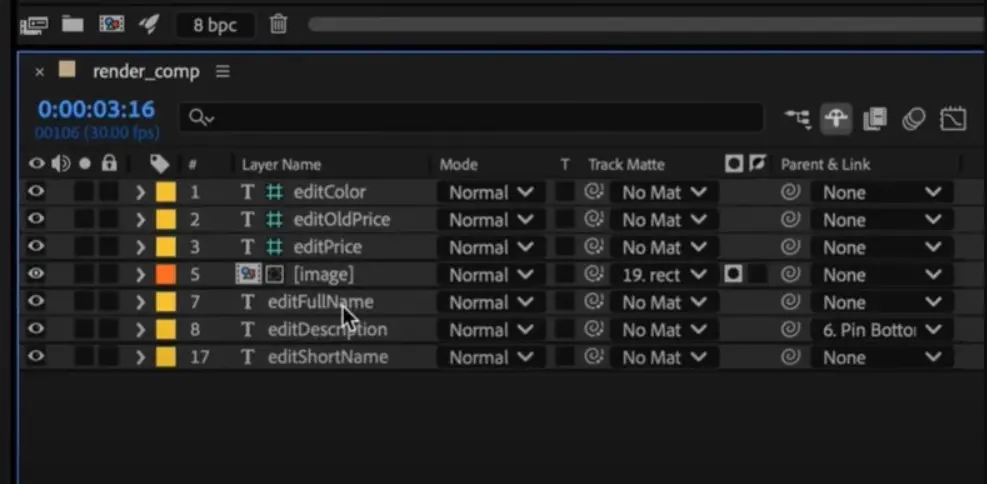
The key is to make some parts of the template dynamic. These are the elements that will change from product to product. Here’s what that might include:
- Product image
- Product name
- Regular price
- Sale price
- Product description
- CTA text
- Product URL
- Background image or color
- Category label
Upload your template to Plainly
Once your AE template is ready to go, your next step should be to upload it to Plainly. As we’ve said, Plainly works well with After Effects templates and uses them to generate your personalized videos automatically. The platform also has an After Effects plugin, so you can upload your template directly from After Effects if that fits your workflow better.
- Start by exporting your After Effects project as a .zip file. Then, open Plainly, go to your main dashboard, and click Upload project. Add your project file, fill in the basic details like the project name and tags, and click Upload.

- After your project loads, click Auto-generate. This is the part where Plainly scans your template and looks for the layers you want to make dynamic.
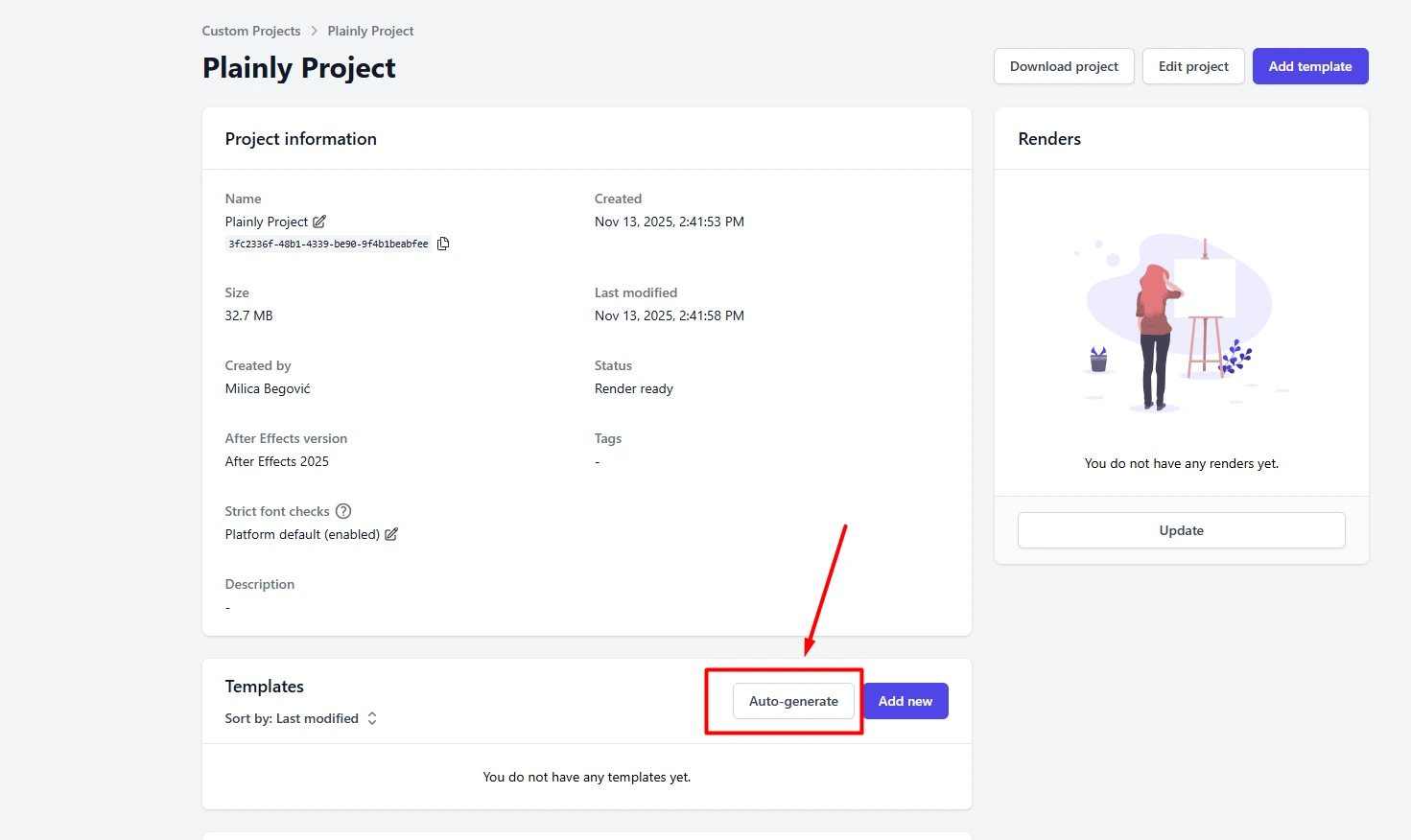
- Next, choose the Prefix option and enter the same prefix you used earlier in After Effects. For example, if you named your editable layers with the prefix Edit, add Edit here too. That prefix tells Plainly which layers should change from one product video to another. So instead of manually selecting every product name, image, price, CTA, or color, Plainly can find those layers and prepare them for automation.
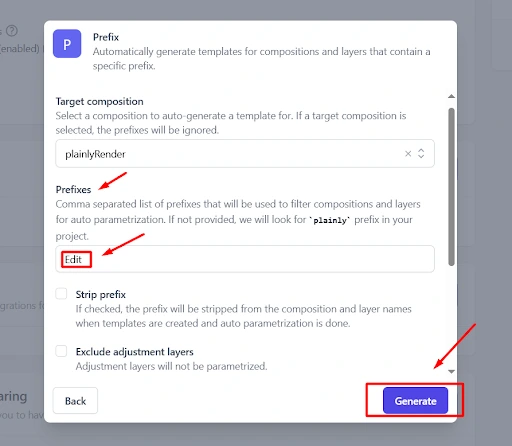
- Once Plainly generates the template, you can move on to the next step or open Parametrize Layers to review everything it pulled from your project. This view is useful because it lets you check your dynamic elements before you start rendering your dynamic video ads. You can filter by layer type, including text, images, video, audio, colors, and control effects. You can also decide exactly which elements should update during rendering and which ones should stay the same.

And if your template needs a little more flexibility, you can add advanced rules with layer scripting. This step is optional, so you don’t need it for every project. But it’s helpful when your videos need to react to your data.
For example, you can use layer scripting when you want product images to crop a certain way, long product names to fit better, or design elements to shift when a discount badge appears. That way, your automated videos still feel intentional, even when Plainly is generating them in bulk.
.webp)
After you upload the template, Plainly analyzes the project and lets you define which layers should become editable fields. These editable fields are what you’ll later connect to your product feed.
Export your product feed from your website
Next, export your product feed from your e-commerce platform so Plainly has the product data it needs to generate your videos. Your product feed is usually a CSV file where each row represents one product, and each column contains product details like the product name, price, image, category, description, SKU, or product URL.
If you use WooCommerce, the process is simple. Go to Products > All Products. At the top of the page, next to the Add New button, you’ll see Import and Export. Click Export to open the product export screen. WooCommerce lets you choose which columns, product types, product categories, and custom meta fields you want to include in the CSV file. Once you select the data you need, click Generate CSV, and WooCommerce will download the file through your browser.
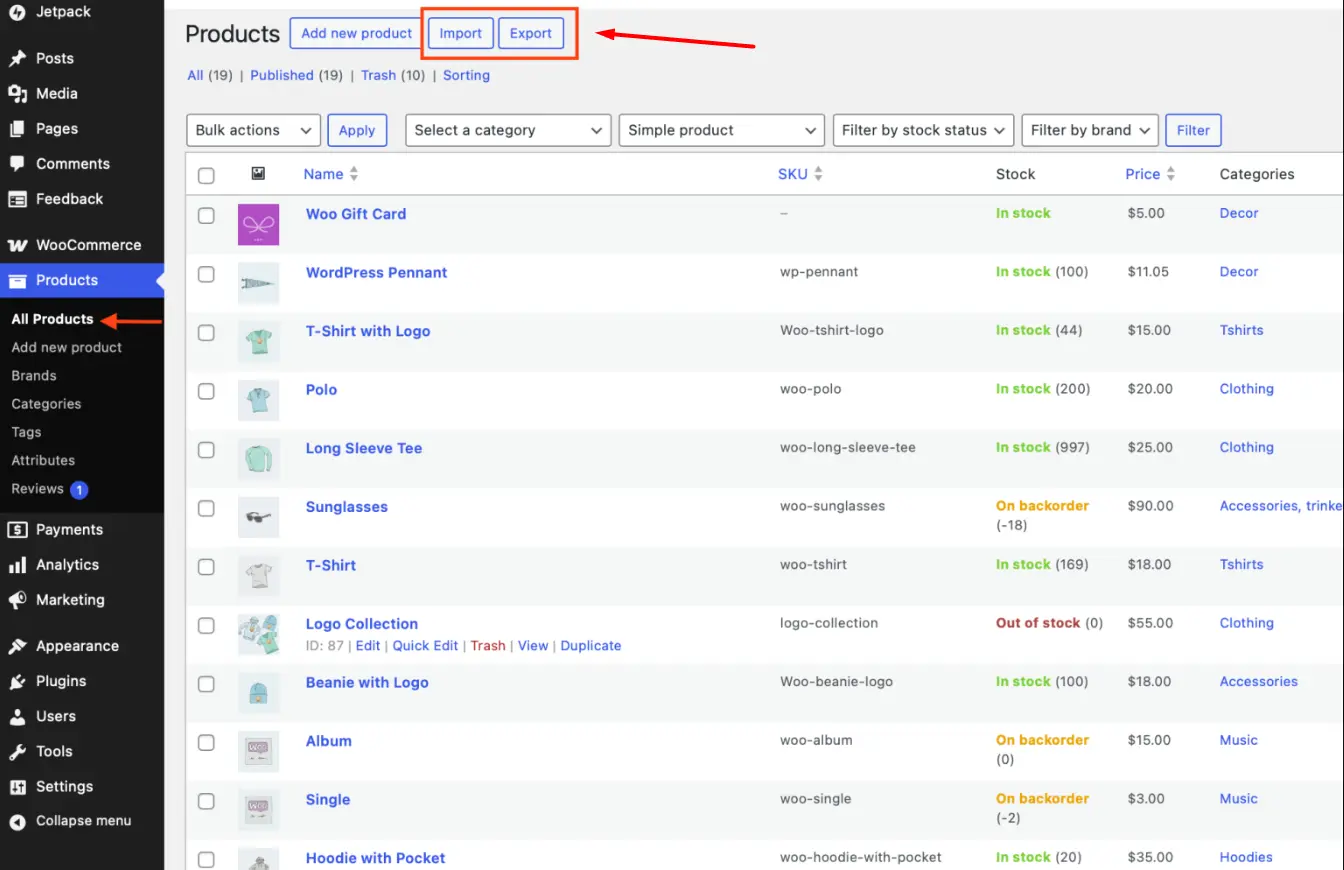
The exact export flow depends on the platform you use. Shopify, Wix, and most other e-commerce platforms let you export products as a CSV file from the product area of your dashboard, usually with options to export all products, selected products, or filtered products.
Once you download the CSV, clean it up before uploading it to Plainly. Keep only the columns your video template needs, such as product name, image URL, price, sale price, category, product URL, and CTA text.
You can also add extra columns for campaign-specific details, like a discount message, badge label, or custom CTA. The goal is simple: make your product feed match the dynamic fields in your video template.
Connect your product feed to Plainly
Product feed = your CSV file. So, now that your template and product feed are ready, it’s time to bring them together in Plainly. This is the step where your spreadsheet becomes the data source for your automated product videos.
- Go to Batch renders in Plainly and click New batch from CSV.
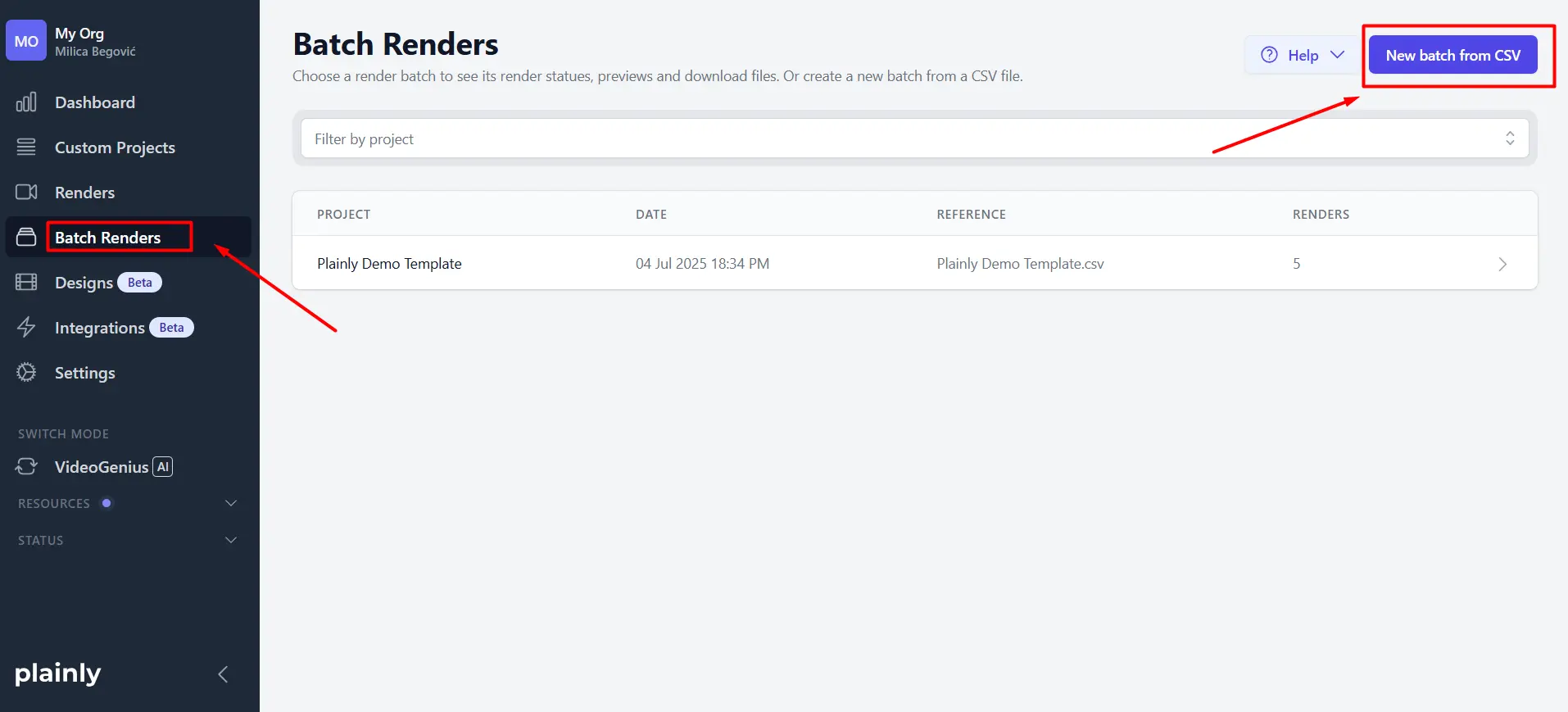
- Then upload your CSV file. If your team manages product data outside a CSV, you can also create videos with Airtable, Google Sheets, Excel, or another structured data source, depending on your workflow.
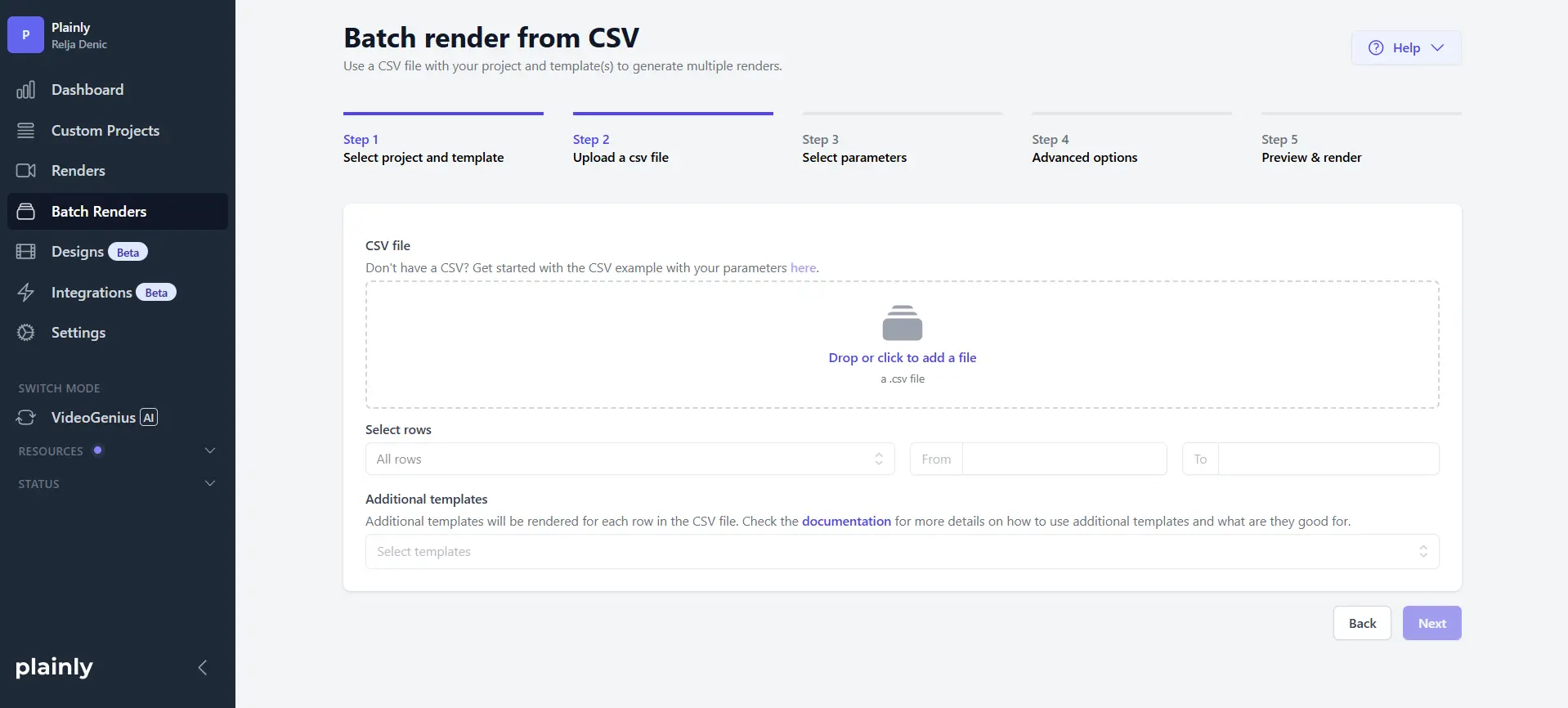
- Next, connect your spreadsheet columns to the dynamic fields in your template. The easiest way to do that is with Auto link. Plainly will automatically match your data to the right layers, so you don’t have to map everything by hand. This works best when your column names match your layer names, which is why naming things clearly earlier in the process helps so much.
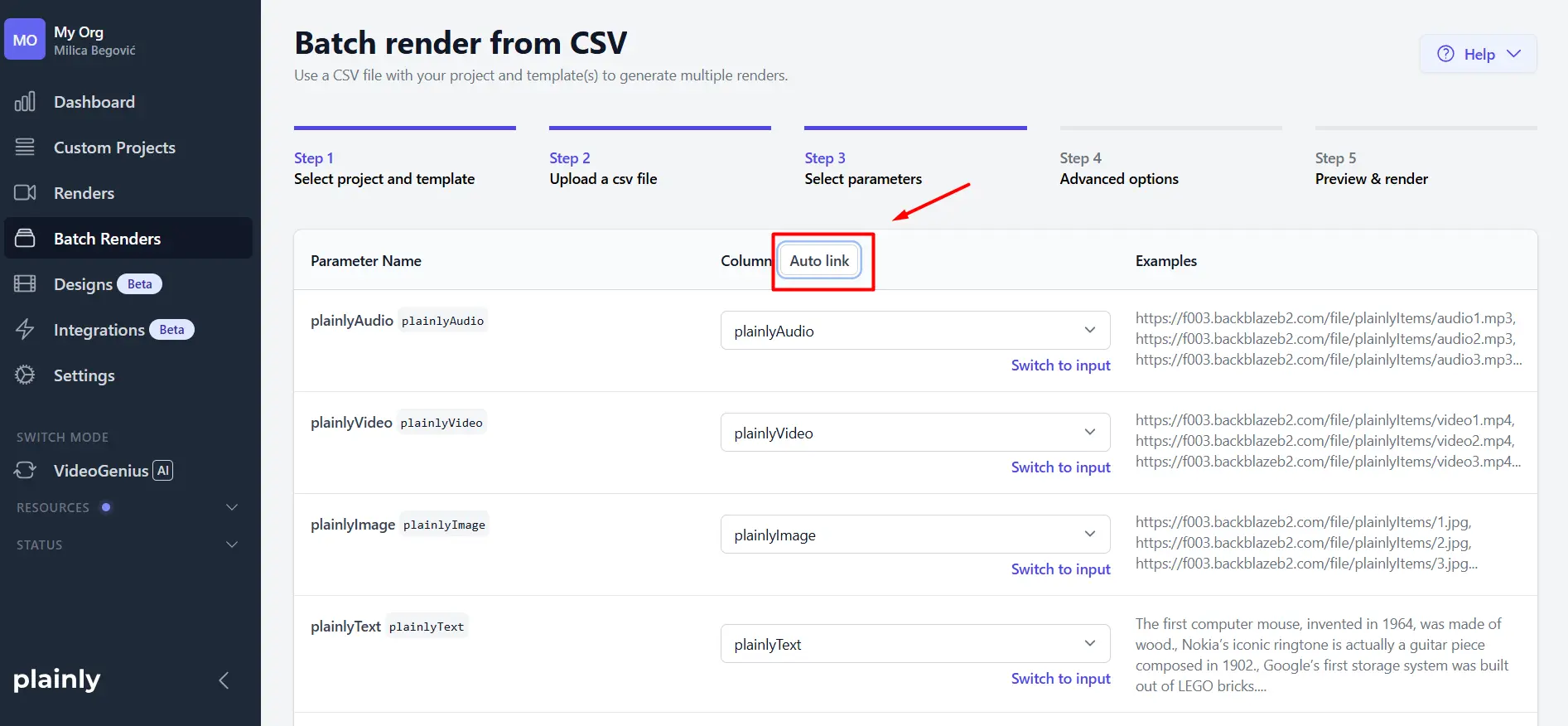
- If you want more control, you can also adjust a few extra settings in Advanced options, like captions, thumbnails, output format, or watermarks. You won’t need every option for every project, but they’re useful when you want your videos to match a specific campaign or delivery format.

Render videos automatically in bulk
Once your data is connected, Plainly can render your product videos in bulk. Each row in your CSV becomes one video, and each column fills in the matching dynamic field from your template.
Remember: before you render the full batch, start with a small test. Generate a few videos first and check the details with real product data: product names, images, prices, CTAs, layout, and timing. This helps you catch small issues before you render videos for your full catalog.
When everything looks right, start the full batch render. That’s when you hit that Render button. Plainly will use your product feed and After Effects template to generate all video variations automatically.
Download or deliver your videos
After the render is finished, you can download your videos or send them to the next step of your workflow. The simplest option is to download the finished files from Plainly and upload them to your website, product pages, ad platforms, email campaigns, social channels, shoppable video placements, or other major platforms.
Or, for an even smoother flow, you can connect Plainly with other tools through Plainly’s integrations, Zapier, or the Plainly API. This lets you build workflows where new product data triggers video creation, and finished videos move automatically to the tools your team already uses.
For example, you could send rendered videos to your storage, CMS, product pages, or campaign tools without downloading and uploading every file manually. That’s where e-commerce video automation becomes part of your daily content workflow, not just a one-time batch render.
Ready to make your product feed show-stopping and fast?
Video automation for e-commerce product feeds gives you the fastest way to create product videos from the data you already have for conversion. Instead of producing every video manually, you create one reusable After Effects template, export your product feed, connect that data to Plainly, of course, and render product videos in bulk.
If your product catalog keeps growing, this workflow helps you keep up without giving up creative control. So, what are you waiting for? Start a free trial with Plainly or book a demo to see how product feed video automation can work for your e-commerce brand today!