How to automate mobile game video ad creation [Complete Guide]



Summarize with





Your competitors are testing 10x more video ad creatives than you, and it's not because they have bigger budgets. They've figured out how to automate mobile game video ad creation while you're still stuck manually editing hundreds of variations instead of using a bulk video editor workflow.
Video accounts for 80.9% of mobile game creatives globally, but most user acquisition teams can't produce enough variations to combat ad fatigue. Manual production is the bottleneck. You need fresh creatives constantly, but agencies charge $500+ per video, and your in-house team is already maxed out.
We've heard this from user acquisition teams over and over that ad fatigue kills performance within days. Testing is the only way to find winners, but when each video takes hours to produce, testing at scale becomes impossible. You're trapped between needing more creatives and not having the resources to make them.
The solution isn't hiring more editors or throwing more budget at agencies. It's automation. One video template plus a spreadsheet of your data can generate hundreds of unique video ads in the time it used to take to make one.
This guide shows you exactly how to implement automated video ad creation, from setting up your After Effects template to bulk rendering and distribution across ad platforms.
What is automated video ad creation for mobile games?
Automated video ad creation for mobile games is a workflow where you build one base video template, connect it to structured data (like a spreadsheet or API), and automatically render hundreds or thousands of unique video variations without manually recreating the same video over and over.
Instead of opening the video editor 500 times to manually swap out text, images, and footage for each variation, you change values in a spreadsheet and let automation handle the rendering. This is what makes dynamic video ads so powerful for mobile game user acquisition teams.
Why mobile games need automated video ad creation
Your video ads lose effectiveness within 3-7 days. That's how fast ad fatigue sets in on mobile platforms. Users see the same creative repeatedly, performance drops, and you're back to square one. The solution sounds simple enough: create more variations, but manual production makes this impossible.
Finding a winning ad requires testing dozens or hundreds of variations with different hooks, gameplay moments, characters, and CTAs. Manual production makes this testing economically impossible. Agency or freelance video editors charge $200-$2,000 per video. Testing 100 variations at $500 each costs $50,000, which puts most meaningful testing out of reach.
Successful mobile games run campaigns across Facebook, Instagram, TikTok, and Google App Campaigns. Each platform requires different aspect ratios and durations. One creative concept becomes 20+ unique video files before you've even started testing variations.
Then there's localization. If you want to reach a bigger audience, you'll need video ads in 10-50+ languages with region-specific assets, gameplay footage, and cultural adaptations. Video localization at this scale becomes expensive through manual workflows.
Speed is the final bottleneck. Performance marketers need fresh creatives within days or even hours to jump on emerging trends, counter competitor moves, or rescue campaigns that are starting to fatigue. Manual production workflows can't move that fast because they take weeks from concept to final deliverable, which means you're always behind.
Automation solves all of these constraints simultaneously. It enables constant creative refresh, makes large-scale testing affordable, handles multi-platform distribution automatically, and reduces production time from weeks to hours.
What you need to create automated video ads for a mobile game
Four components power the entire automation workflow:
- A base video template
- Your data and assets
- A video automation platform
- A distribution method
That's it. No coding required, no engineering team needed.
Your base template is a single master project (most commonly an After Effects project) - Think of it as your core design that defines the visual style, animation timing, and overall structure. Inside this project, you'll mark specific elements as dynamic like text layers for character names or stats, image placeholders for different heroes or game environments, video clips for gameplay footage, and audio files for localized voiceovers. These dynamic elements are what change between each variation.
Your data and assets go into a spreadsheet - typically a CSV file, Google Sheets, or connected via API. Each row represents one unique video ad, and each column represents one dynamic element from your template. Row 1 might be "Fire Dragon + English voiceover + 'Download Now' CTA," while Row 2 is "Ice Wizard + Spanish voiceover + 'Play Free' CTA." This spreadsheet-to-video approach is what makes scaling from 10 variations to 1,000 variations equally simple.
The video automation platform connects everything - The video automation platform connects your creative template to your spreadsheet data, mapping each column to the right element in your video. Then it renders every variation automatically using cloud infrastructure. Plainly handles exactly this workflow, turning one template and a spreadsheet into hundreds or thousands of unique video ads without manual exports or rendering queues.
Distribution happens however you need it - Download videos manually for small batches, auto-deliver to Google Drive or Dropbox for team review, push to Frame.io for approval workflows, or use the API to send videos directly to ad platforms.
Step-by-step guide on how to automate mobile game video ad creation
This workflow takes you from a blank After Effects project to hundreds of rendered video ads ready for distribution. We're using After Effects because it's the industry standard for motion graphics and gives you maximum creative flexibility for stunning mobile game visuals. Plainly Videos handles the automation side by connecting your template to data and managing bulk rendering on cloud infrastructure.
The entire process breaks down into five distinct phases, each building on the last.
Create your video ad template
Start by building your mobile game video ad in After Effects exactly as you normally would. Design the complete ad with your layout, animations, transitions, timing, gameplay footage, character graphics, text overlays, background music, and sound effects. This becomes your base template, the foundation for every variation you'll create.
The key difference from standard video editing is identifying which elements should change between variations. For mobile game ads, these dynamic elements typically include hero or character names, score, promotional copy, gameplay video clips, character images, background images, UI elements, seasonal graphics, localized text, and voiceover audio files.
Add a consistent prefix to every dynamic layer in After Effects. For example, rename "Title" to "renderTitle" or "EditTitle" (any prefix works, just stay consistent). Using "render" as your prefix, layers become renderCharacterName, renderLevelNumber, renderGameplayClip, renderHeroImage, renderVoiceover. This naming convention enables auto-detection in the next step, allowing the tool to instantly mark your layers as dynamic without any manual setup afterwards.
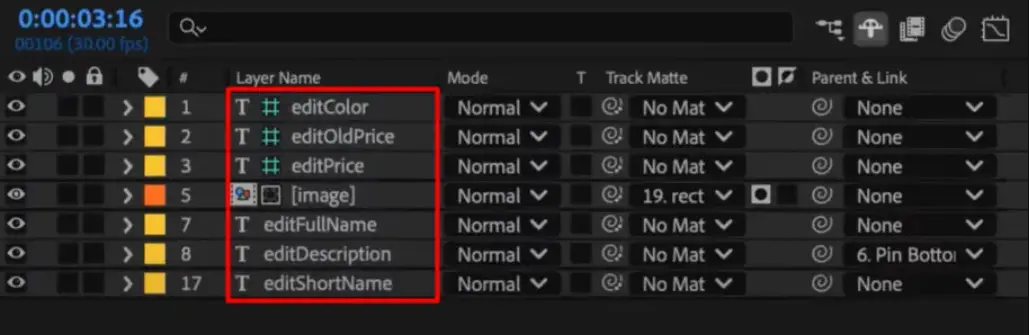
Keep your template design flexible enough to handle different text lengths without breaking. Elements marked with the prefix change between videos, while animation timing, transitions, and layout stay consistent across all variations. This consistency makes your videos feel cohesive when the content changes.
When you're finished designing, compress the entire After Effects project folder into a ZIP file. Make sure to include the .aep file and all linked assets. Or use our official After Effects plugin to push it directly from your computer to Plainly.
Upload your video template to Plainly Videos
Log in to the Plainly dashboard and click Upload Project. Give your project a descriptive name so you can identify it easily later when you're managing multiple templates.

Upload your compressed ZIP file. Once the upload completes, create a new template from the uploaded project. You can actually create multiple templates from one project, which becomes incredibly useful when you need different aspect ratios.
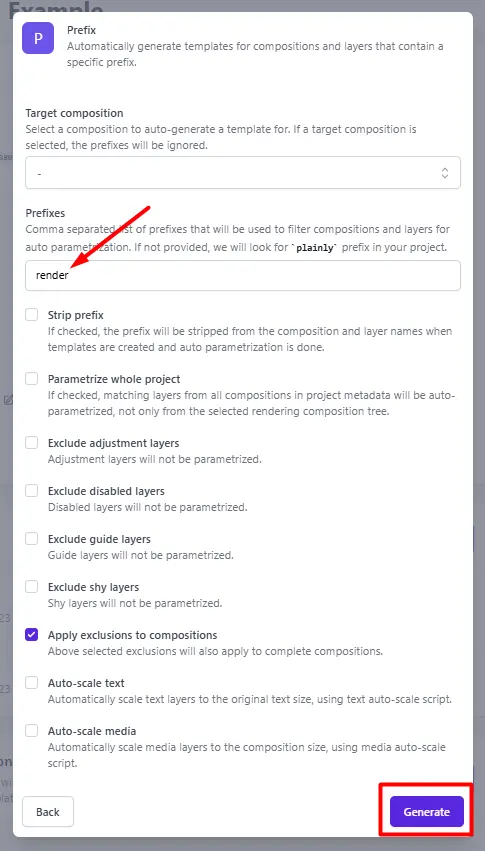
Now, if you defined your prefixes in the previous step, you can click Auto-generate and choose Prefix.

In the next step, enter the prefix you used in your After Effects project (like "render"), and click Generate. Plainly scans your entire After Effects project and automatically detects every layer matching your prefix, tagging them as dynamic layers ready for data connection. You have additional options that you can use based on your needs, like stripe prefix, auto-scale text or media, and more.
After the template is generated, you can open the Parametrize Layers interface to review all automatically detected dynamic elements. They're organized by type: text layers, image placeholders, video clips, audio files, color controls, and effects parameters. You can make manual adjustments if the auto-detection missed anything or if you want to fine-tune behavior.

For advanced use cases, Layer Scripting lets you add per-layer rules like cropping, extending or position shifting. This is especially useful when you need to control layer behavior at render time, keeping your automation flexible without ever needing to rebuild the template.
.webp)
Upload your data and assets in a CSV
Create a CSV file where the first row contains column headers matching your dynamic layer names exactly. You can also generate an example CSV directly from Plainly based on your template's dynamic layers.

If your template has renderCharacterName, renderLevelNumber, and renderHeroImage layers, your CSV needs columns with those exact names. Case sensitivity matters here, and using these exact names will make the next step faster when you connect your data to the template.
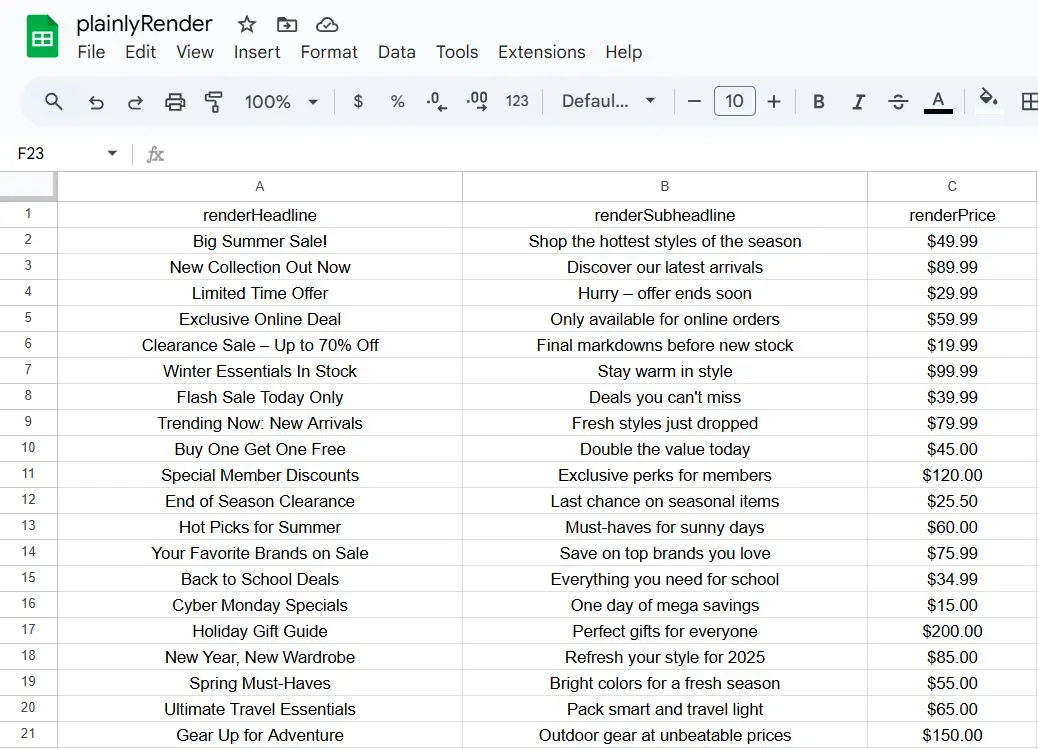
The row-to-video relationship is straightforward: each row in your CSV equals one rendered video. One hundred rows produce 100 videos. One thousand rows produce 1,000 videos. The effort on your end stays exactly the same regardless of scale. That's the fundamental principle behind data-driven videos: separate your content from your design, then recombine them programmatically.
Here's what makes CSV data work reliably:
- Match column names exactly to layer names (they're case-sensitive)
- Fill all required columns for every row
- Format data consistently (dates, numbers, URLs)
- Test with a small batch first (five to ten rows) before committing to full-scale rendering
While CSV is the simplest and most universal approach, Plainly also supports live integrations with Google Sheets, Microsoft Excel, Airtable, and direct API connections for automatic triggered rendering. We're focusing on CSV here because it works for everyone regardless of your tech stack, but those other options exist when you want continuous automated rendering as data gets added.
Start rendering your video ads in bulk
Go to Batch Renders in the Plainly dashboard and click New batch from CSV.
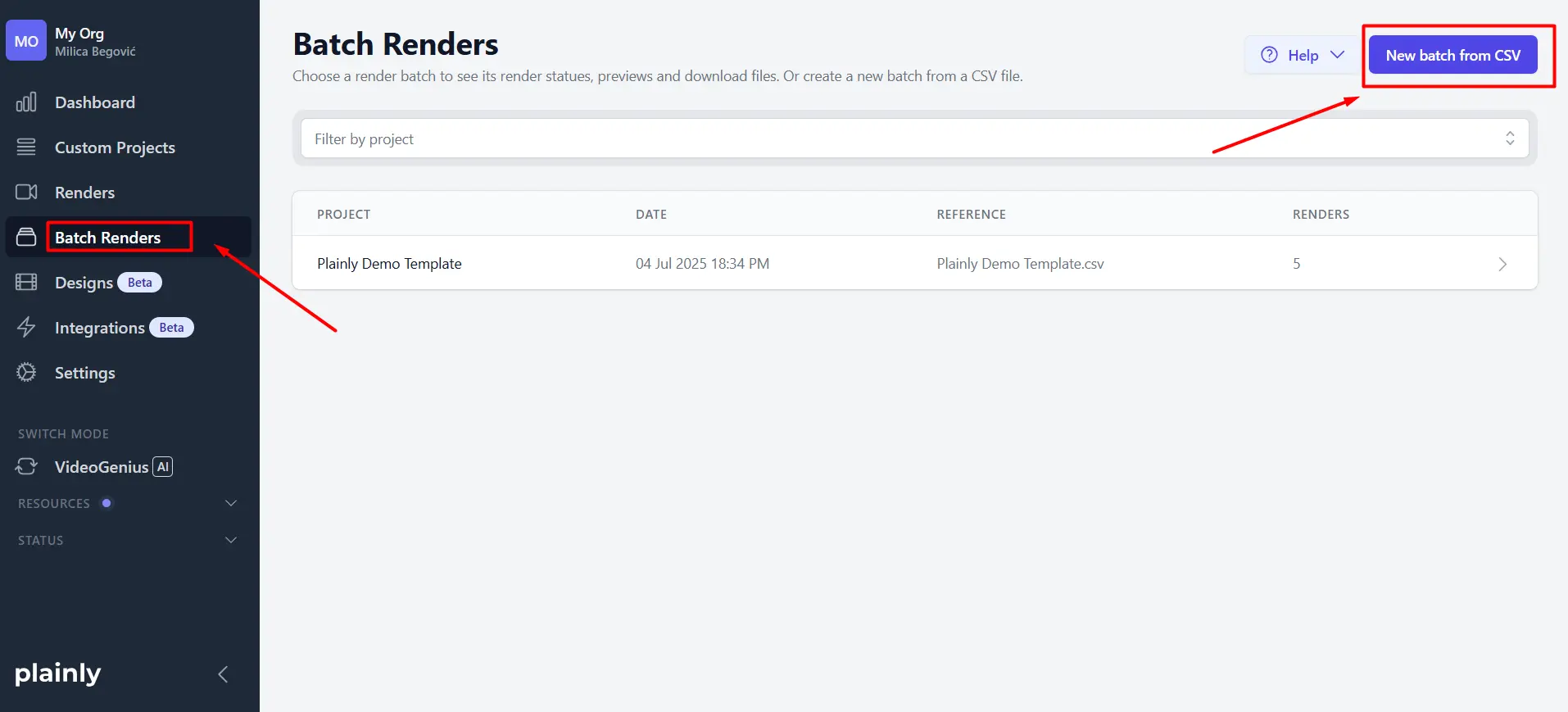
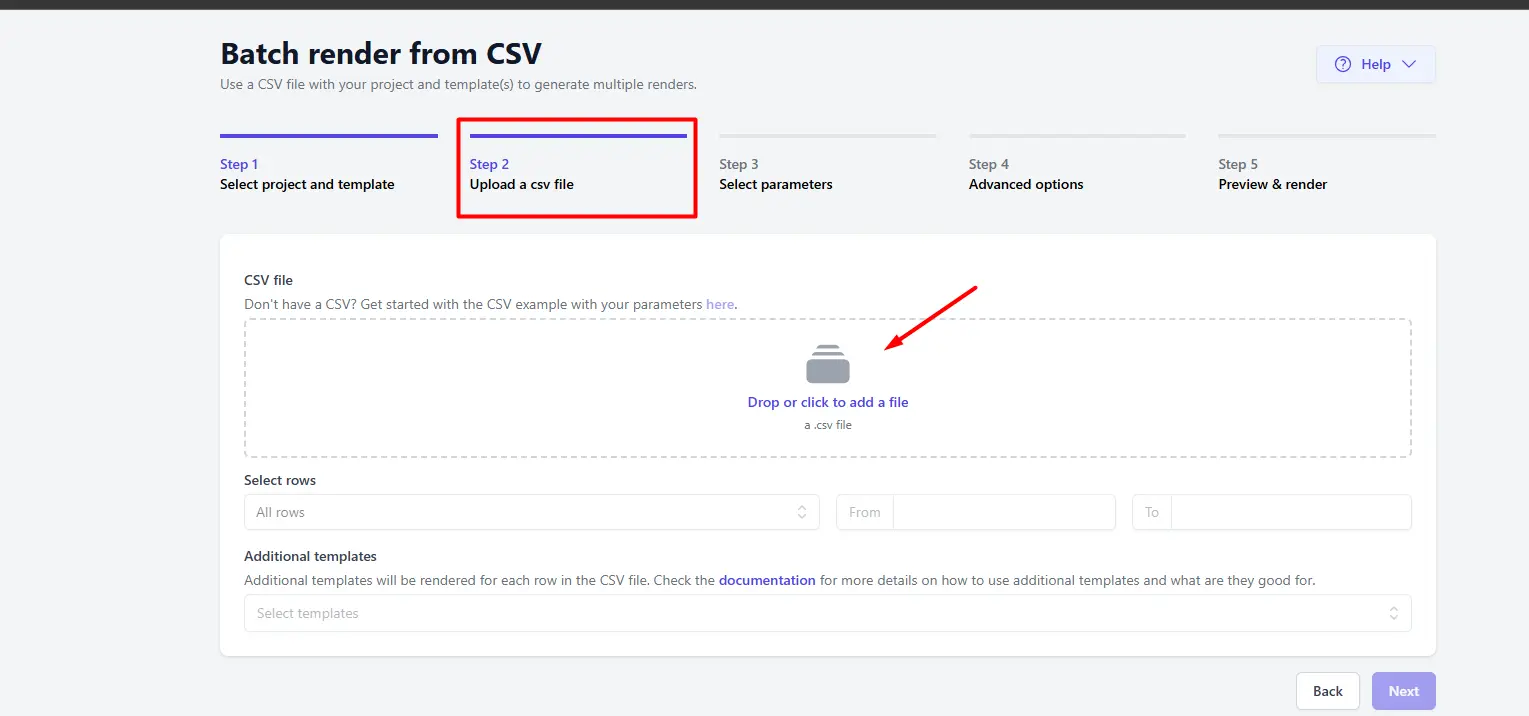
Upload your prepared CSV file.
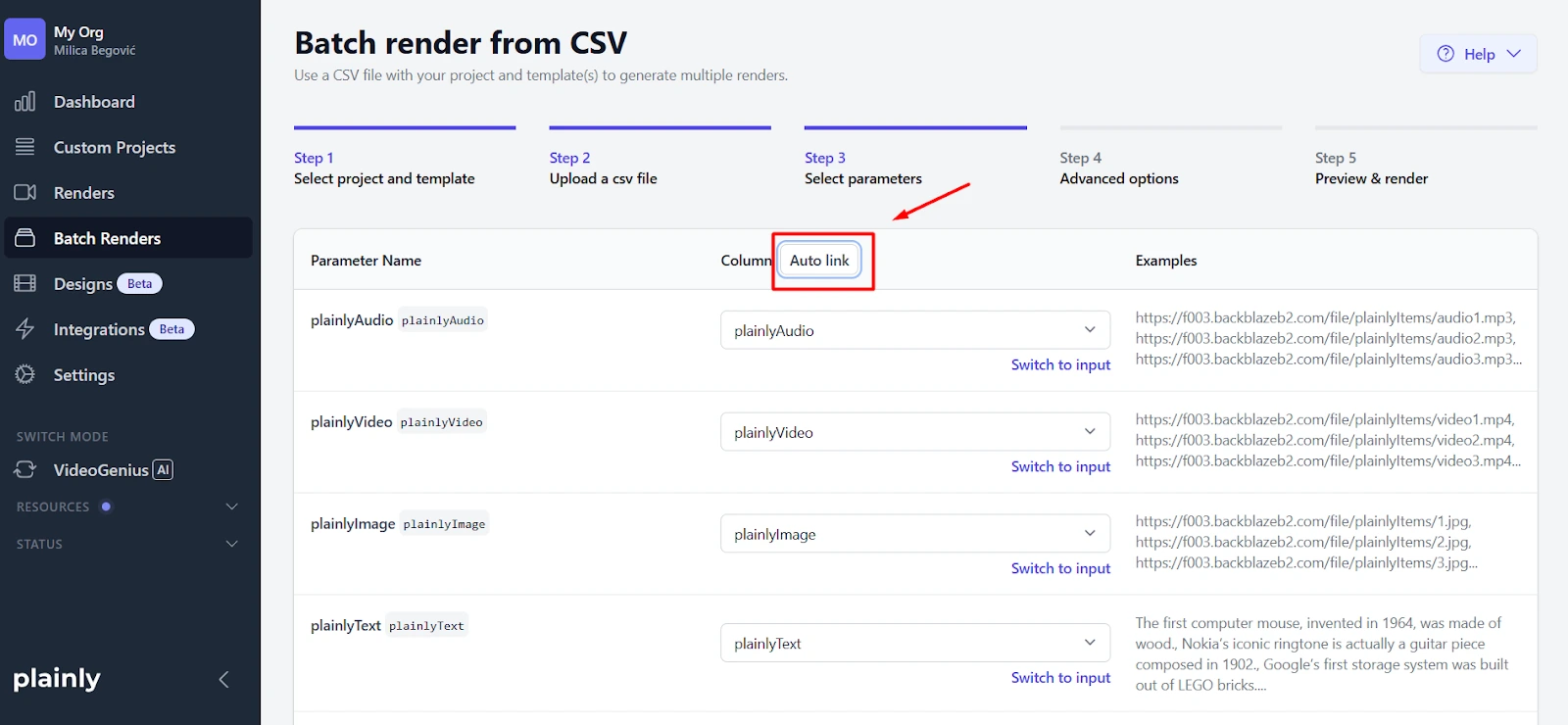
The platform shows you a parameter mapping interface where you match CSV columns to template dynamic layers. If you followed the naming convention from earlier and matched column names to layer names exactly, click the Auto-link button to map everything instantly.
You can configure optional settings like output format (MP4 or MOV), resolution, frame rate, captions, thumbnail generation, and watermarks. When you selected your additional options, you can move to the next step and hit Render.

All videos render in parallel on the cloud infrastructure. This is where automation shows its real power compared to manual editing. Renders happen on Plainly's servers, not your local machine. You can close your browser, and rendering continues. Rendering speed depends on video complexity and length, but bulk renders typically complete in minutes to hours rather than the days or weeks manual editing would require. A batch of 500 thirty-second video ads might finish in under two hours, whereas manually creating those same 500 videos would take weeks of full-time editing work.
Download and distribute your videos
Once rendering is complete, you have a few ways to get your videos where they need to go.
The simplest option is to download them manually, either one by one or as a ZIP file.
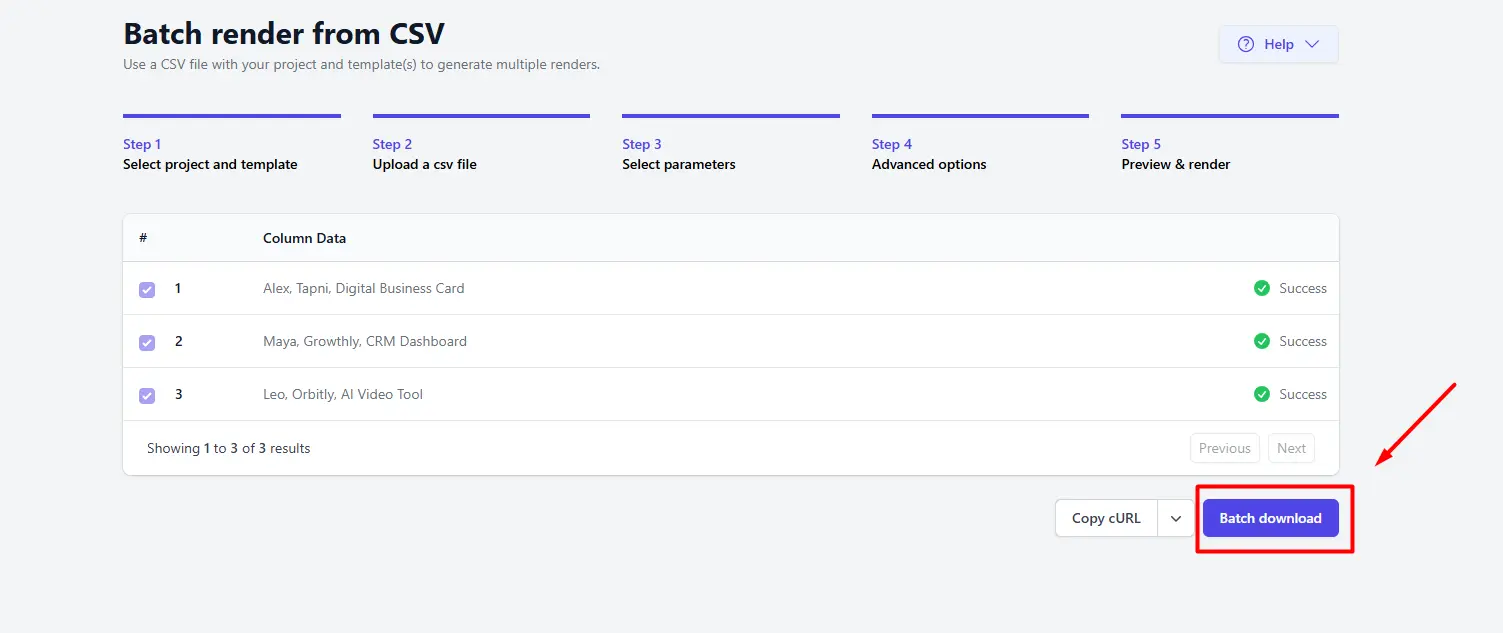
If you want delivery to happen automatically, you can connect cloud storage integrations like Google Drive, Dropbox, and similar platforms, so videos land in the right folder the moment rendering finishes. And if you need something more custom, the API lets you build any delivery workflow you want, whether that's pushing videos directly into your ad management system, marketing tools, or a fully automated campaign pipeline.
The entire workflow from data entry to video delivery can run automatically once you've configured it. Add a new row to your connected Google Sheet, and minutes later, a finished video appears in your Google Drive folder, ready for campaign upload. That's the complete automation loop in action.
Starting your automation workflow
Start small. Pick one template and create 10-20 variations to learn the workflow before scaling to hundreds. This lets you test the process without overwhelming yourself.
The entire workflow we've covered breaks down to five steps: - Design your After Effects template with dynamic layers marked by a consistent prefix
- Upload it to Plainly and let the platform auto-detect those elements
- Prepare your CSV with columns matching your layer names
- Kick off bulk rendering on cloud infrastructure
- Distribute videos through your preferred channels
What makes this accessible is that you're using tools your creative team already knows. After Effects handles the design work, and spreadsheets manage the data. No coding required. Your performance marketers can manage the entire process through simple spreadsheet updates.
Automating mobile game video ad creation is the only sustainable way to achieve the creative testing volume that modern user acquisition demands. Manual production can't keep pace with ad fatigue or deliver the hundreds of variations needed to find winners.
Ready to implement this workflow? Sing up for Plainly Videos to start automating your mobile game video ads today.