How to create automated recap videos



Summarize with





Automated recap videos help you turn product activity, user data, or software events into refined videos that highlight the most important takeaways without editing each one manually. Sounds great, right?
If you’re creating recap videos for your product or software, automation is proven to be the fastest way to scale without turning every video into a production task. We’ve seen that the real challenge is not coming up with recap ideas. It’s pulling the right data, updating visuals, changing text, and rendering new versions again and again.
That is where recap video automation makes a real difference.
In this guide, the goal is simple: help you understand how to create automated recap videos in a way that actually works in production, not just in theory. That’s why we’ll cover the basics first. What, why, where, and how to create automated recap videos. Also, which tools to use to build a process that is scalable, reliable, and easy to maintain as you go.
Let’s jump right into it!
Automated recap videos help you turn product activity, user data, or software events into refined videos that highlight the most important takeaways without editing each one manually. Sounds great, right?
If you’re creating recap videos for your product or software, automation is proven to be the fastest way to scale without turning every video into a production task. We’ve seen that the real challenge is not coming up with recap ideas. It’s pulling the right data, updating visuals, changing text, and rendering new versions again and again.
That is where recap video automation makes a real difference.
In this guide, the goal is simple: help you understand how to create automated recap videos in a way that actually works in production, not just in theory. That’s why we’ll cover the basics first. What, why, where, and how to create automated recap videos. Also, which tools to use to build a process that is scalable, reliable, and easy to maintain as you go.
Let’s jump right into it!
What are automated recap videos?
Automated recap videos are videos created from templates, rules, and dynamic data instead of being edited manually every time.
That means you can build one recap video template and automatically update elements like text, visuals, scenes, branding, or voiceover for each new version you make. This is a great option if your flow involves creating recap videos for product updates, user summaries, campaign results, or customer milestones at scale. With this system, volume is no issue, and the results don’t lack either.
Also, you can use AI as a part of this process, for example, for writing scripts or generating voiceovers or subtitles, but it is not required for the system to work seamlessly. You can build a strong recap video automation workflow with templates, structured data, and the right automation tools alone.
Manual vs. automated recap videos
As you know, there are two main ways to create recap videos: manually or through automation. Both can work, but they solve very different problems, so let’s take a look at both, so you can see which works for you better.
Manual recap videos give you full and concise creative control. You can tweak every scene, rewrite every line, and make detailed edits for a single video. That works well for long-form one-off projects, brand campaigns, or highly custom recaps. The downside is speed. Manual production takes up more time, more effort, and usually more manpower. If you need to create recap videos regularly, the process becomes pretty hard to scale, especially for longer videos.
On the other hand, automated recap videos are built for repetition. You create a template once, connect it to your data, and generate new versions automatically. This is the better option when you need shorter videos for many users, accounts, reports, updates, or events. You can even use this system for creating YouTube videos. The trade-off is that you need a solid setup up front. Templates, data mapping, and workflow logic need to be planned and set up carefully before the process actually starts saving time.
Here’s the practical difference:
Manual recap videos
Pros:
- More creative flexibility
- Easier for unique one-off videos
- Better for highly customized storytelling
Cons:
- Slow to produce
- Harder to scale
- More room for repetitive work
- Higher production effort
Automated recap videos
Pros:
- Faster production
- easier to scale
- consistent output
- easier to personalize at volume
Cons:
- Requires setup upfront
- depends on structured inputs
- offers less frame-by-frame flexibility than manual editing
We’ve seen that manual video creation works best when quality depends on constant hands-on editing. Automated recap videos work best if speed, scale, and consistency matter more in your case.
Use Cases for automated recap videos
If you’re not convinced yet, you need to look at possible use cases to enhance your video game. As we’ve said, automated recap videos work best when the same video format needs to be created again and again, but with different data, visuals, or messages.
A strong use case is product and user recap videos. SaaS companies can automatically generate videos that summarize a user’s activity, usage milestones, feature adoption, or account progress. Instead of sending a static summary of key moments, you send a video that feels more personal and easier to digest and maybe engage with. Also, it helps with brand visibility and customer loyalty.
They also work well for event and campaign recaps. That includes post-event key moments videos, follow-ups after webinars, seasonal campaign summaries, or customer performance recaps. If the structure stays the same but the details change, automation is usually the better way to produce them, right? We agree!
Another strong use case is personalized customer videos. For example, brands can create recap videos based on each customer’s results, achievements, or participation. Here’s where we can show you Plainly’s personalized Run Malibu video case study as a good example we’re proud of! In that project, Augment Agency used Plainly Videos to create more than 5,000 personalized recap videos for race participants using just an After Effects template, runner data, CSV import, and Google Sheets delivery workflow.
You can also use recap video automation for internal reporting, sales updates, marketing performance summaries, and client reporting. We’ve seen that any workflow built around repeatable video structure and changing data is a strong fit for automated recap videos.
Step-by-step on creating automated recap videos
Creating automated recap videos is much easier when you split the work into two parts. First, you design the video in After Effects. Then, you automate production in Plainly. Why do we recommend this workflow? Well, because After Effects is still the industry standard for motion design, and Plainly is here to handle the repetitive part like mapping data, rendering versions in bulk, and sending finished videos where they need to go. We know. We made it that way.
But that’s not all there is to it. Once it starts, the process is pretty straightforward. You build one recap video template, connect it to your data, render multiple versions automatically, and distribute them based on your workflow.
Here’s the guide in video form. But for those who don’t like to pause videos to follow instructions, the step-by-step manual is right below. Time to create a video recap system!
Create your video template
Start in After Effects, as we’ve said before, and build your polished recap video as a reusable template. This is also where you define the animation, timing, and visual structure that will stay consistent across every automated recap video. Treat it as your master file, which you design once, and later, Plainly swaps elements you want to change. Easy!
The key here is to keep the structure fixed and make only the elements you want to change in each video dynamic. That usually includes:
- names
- dates
- product stats
- user activity
- screenshots
- logos
- CTA slides
- voiceover or audio, etc.
Then just add an Edit prefix right before the layers and render comps you want to change dynamically, like in the image below. You can use any prefix; the trick is to match it in your template and Plainly, later on.
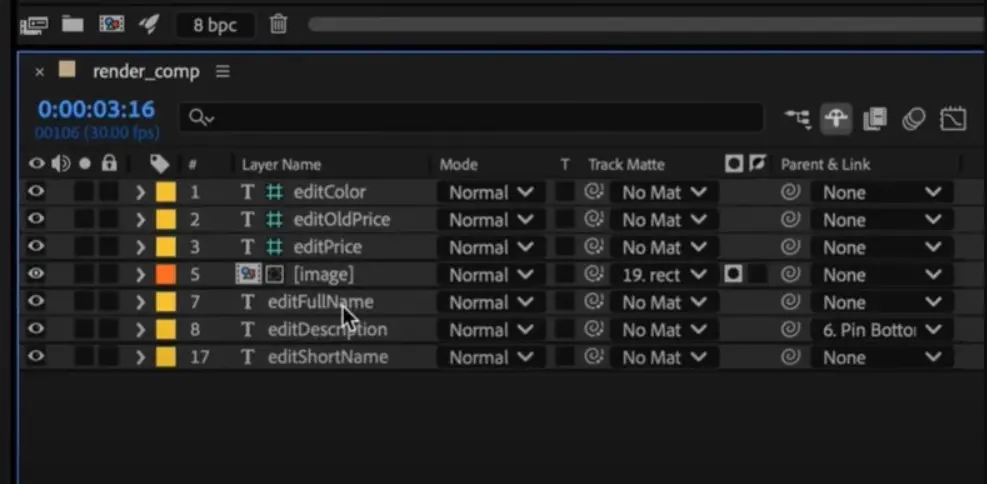
This part matters most. A clean template makes automation easier and is a great foundation for recap video automation. And a messy template? Well, it creates problems later on. We’ve seen that the best automated recap videos keep the design polished but the logic simple, so keep that in mind when creating your template.
Upload your template to Plainly
When you’re ready, export the template and upload it as a .zip project to Plainly with all required assets. This is the part where we make your video automation-ready. In Plainly, you define which parts of the template should change from one version to the next. These can be text fields, images, videos, audio, or other editable elements.
Think of this step as turning a static video into a system. You are telling Plainly which pieces stay the same and which pieces will be filled in with data later. Here’s how it looks in Plainly:
- Go to the main Dashboard and hit Upload project. Then add the project along with all the details that you need, like name, tags, etc. Then just hit Upload.

- Plainly then scans your project and lists layers in all your render comps. Next, click on Auto-generate and select the Prefix option. This allows you to automatically generate templates for layers and comps with a specific prefix.

- Now, type in Edit - that’s the prefix you used before your dynamic layers. It tells Plainly exactly what to swap. When that’s done, hit Generate and let the automation generate the template.

Later on, you can always go back and update the dynamic layers in your template manually.
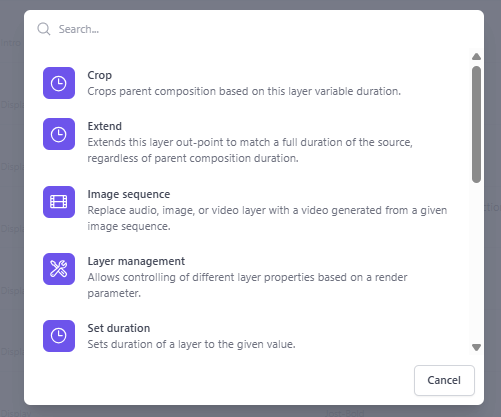
Inside Parametrize layers, you’ll see all available layers from your project in one place, sorted by type, such as dynamic text, images, video, audio, colors, and control effects. This makes it easy to review your setup, adjust existing dynamic elements, or add new ones as your recap video workflow grows.
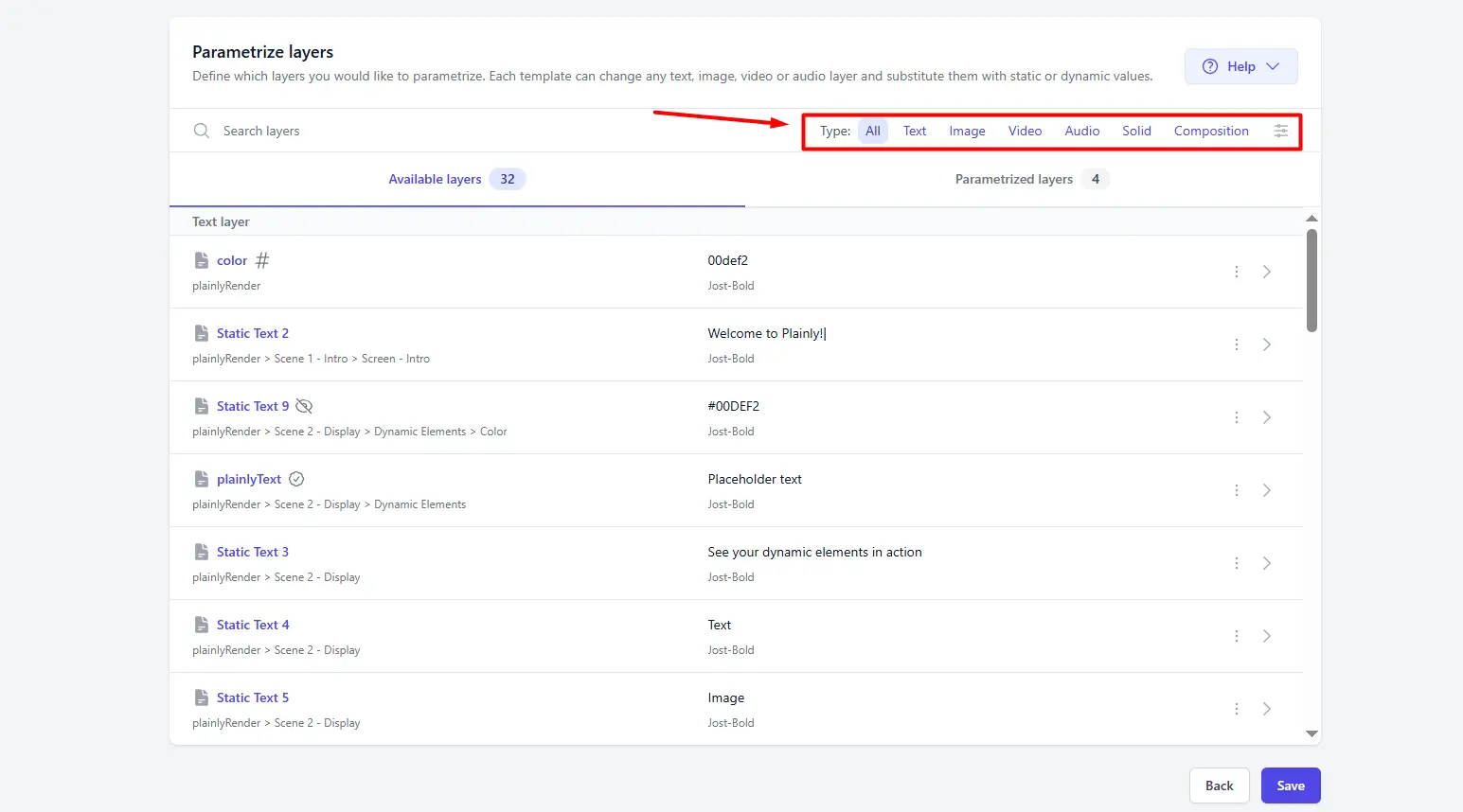
You’ll also find more advanced layer scripting options there. These let you apply rules to parameterized layers, like crop, extend, or shift, so you have more control over how each element behaves in different video versions. This is especially useful when you want your automation to stay flexible without rebuilding the template.
Connect your database
Now it’s time to connect the data that will power each recap in our data-driven video process. There are three main ways to do that:
- through the API
- through integrations
- through a CSV file
If your product already stores user or campaign data in a database, the API is usually the best option. If your data lives in connected tools, integrations can simplify the workflow. And, if you want the easiest setup, start with a CSV file.
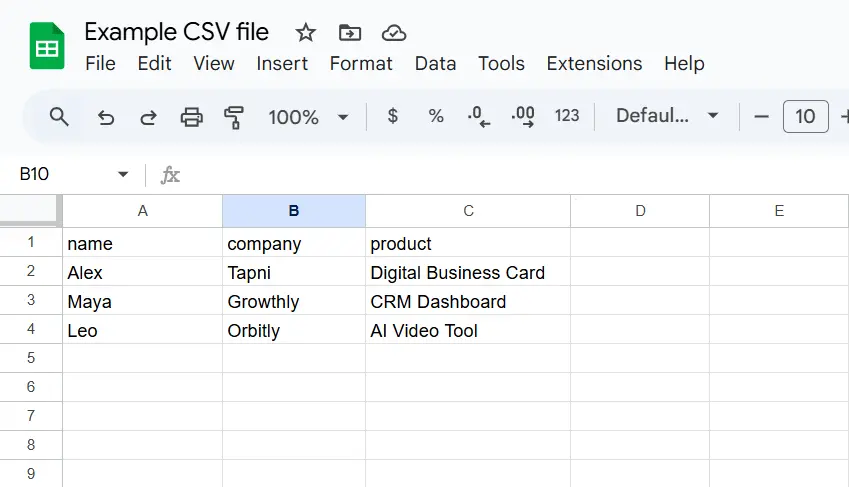
For most teams, CSV is the fastest way to get started. You can prepare it in Google Sheets, Excel, or Airtable, then export it as a CSV. Each row should represent one video. Each column should match one dynamic field in your template.
So if your recap video includes name, date, usage_score, and summary_text, your CSV should include those exact columns.
A few rules make this much easier:
- Keep column names consistent and match them to the dynamic layers
- Make sure each row contains all the data for one video
- Format dates, numbers, and file links correctly
- Test a few rows before running a full batch
This is the step that turns one recap video into a scalable workflow. Here’s an example of a CSV file you’d need:
Render automated recap videos in bulk
Once your template and data are connected, you can start rendering. In Plainly, you select the template, upload the CSV or send data through the API, and render multiple recap videos in one batch. This is where recap video automation starts saving real time.
Here’s a short step-by-step of how to render your videos.
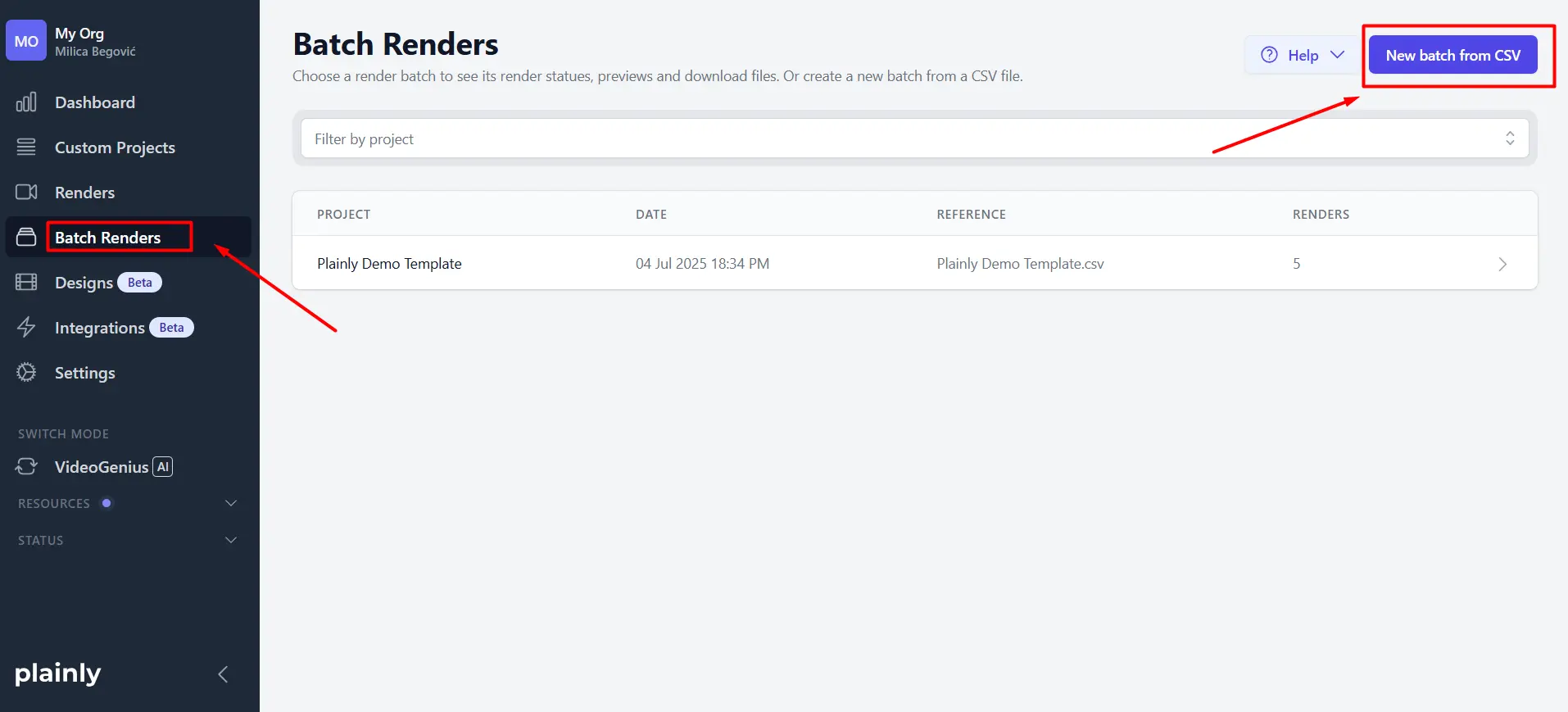
- First, go to Plainly’s Batch renders and hit New batch from CSV.
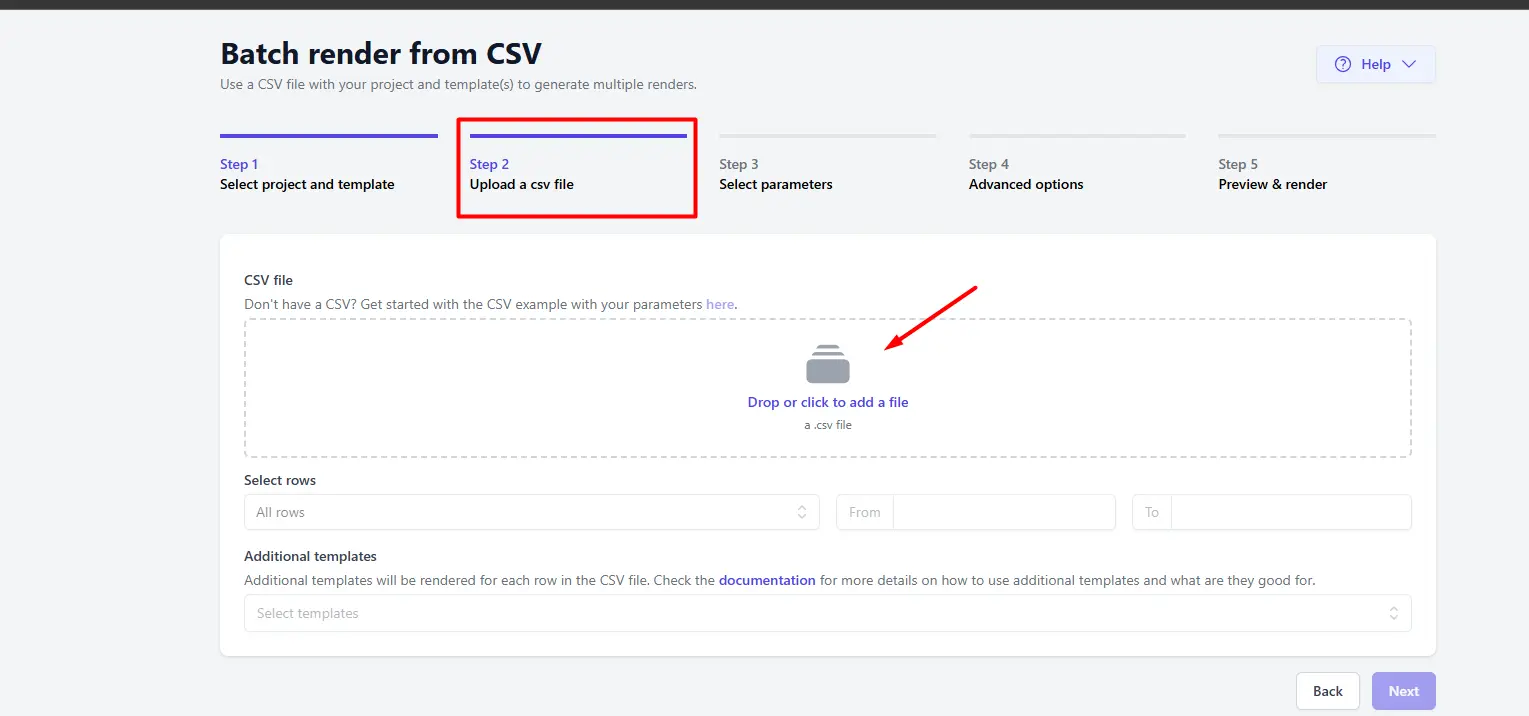
- Next, upload the CSV to the required field.
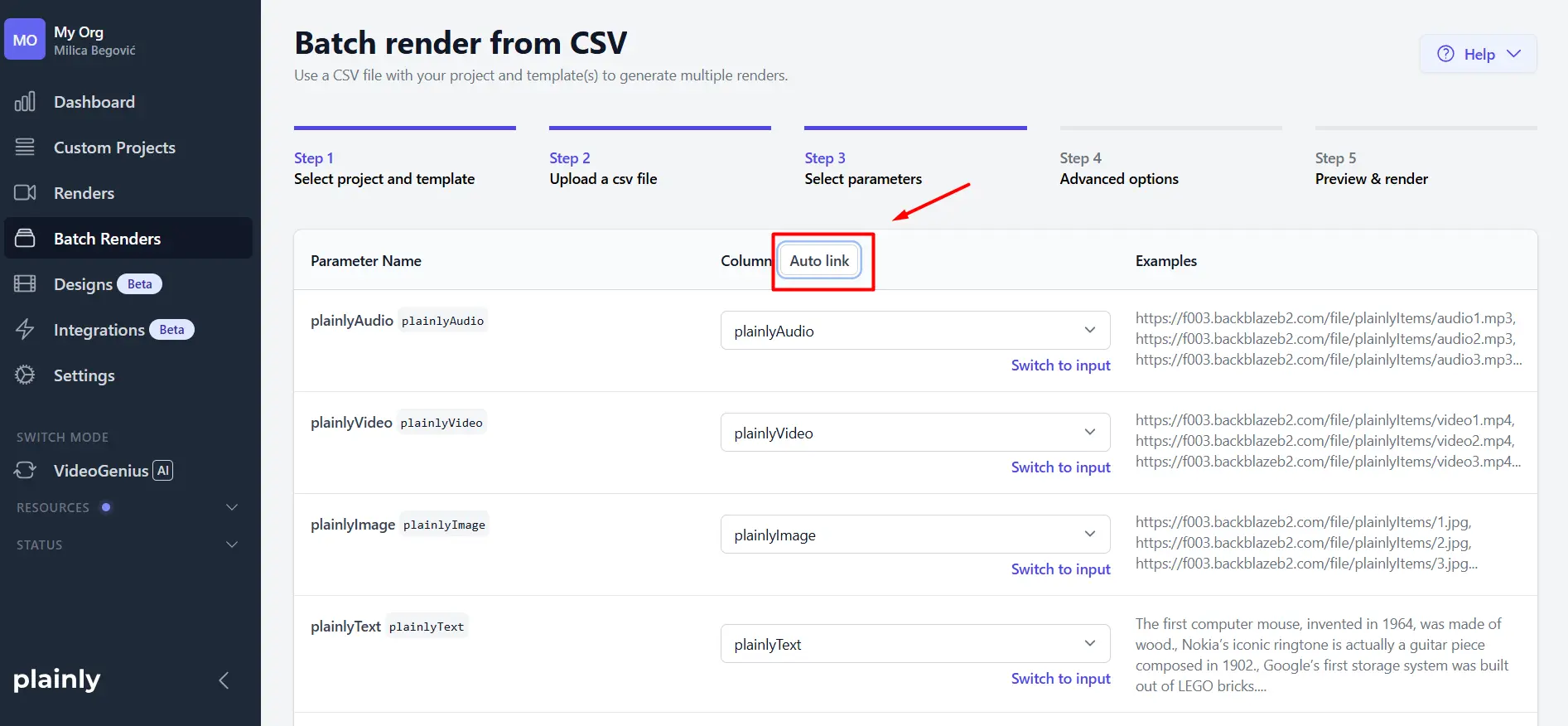
- Next, select your parameters. If your column names match your layer names, Plainly can map the data automatically with the Auto link button, so you do not have to connect each variable manually. You can still do it by hand, but this makes the setup much faster.
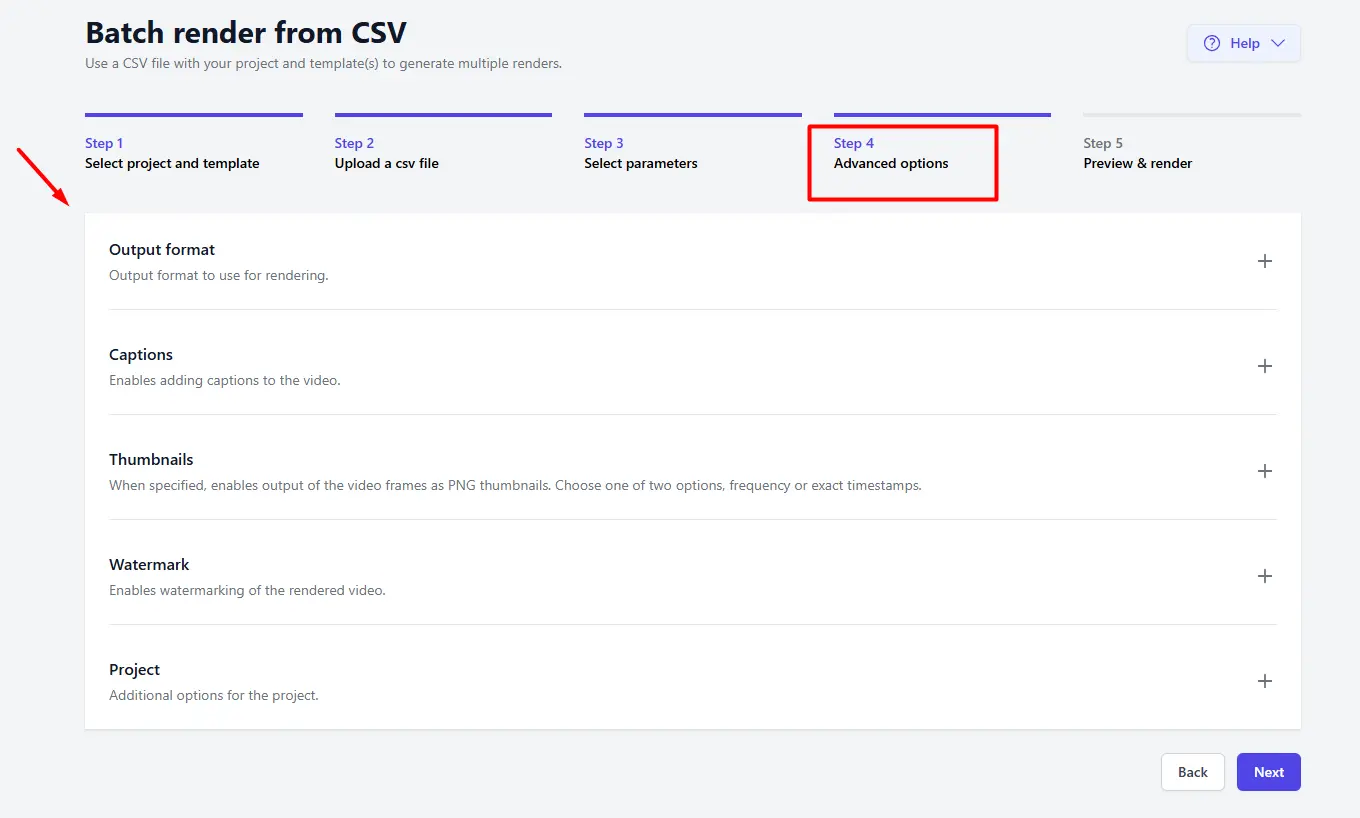
- Finally, you can use advanced options like captions, thumbnails, output format, and watermarks.
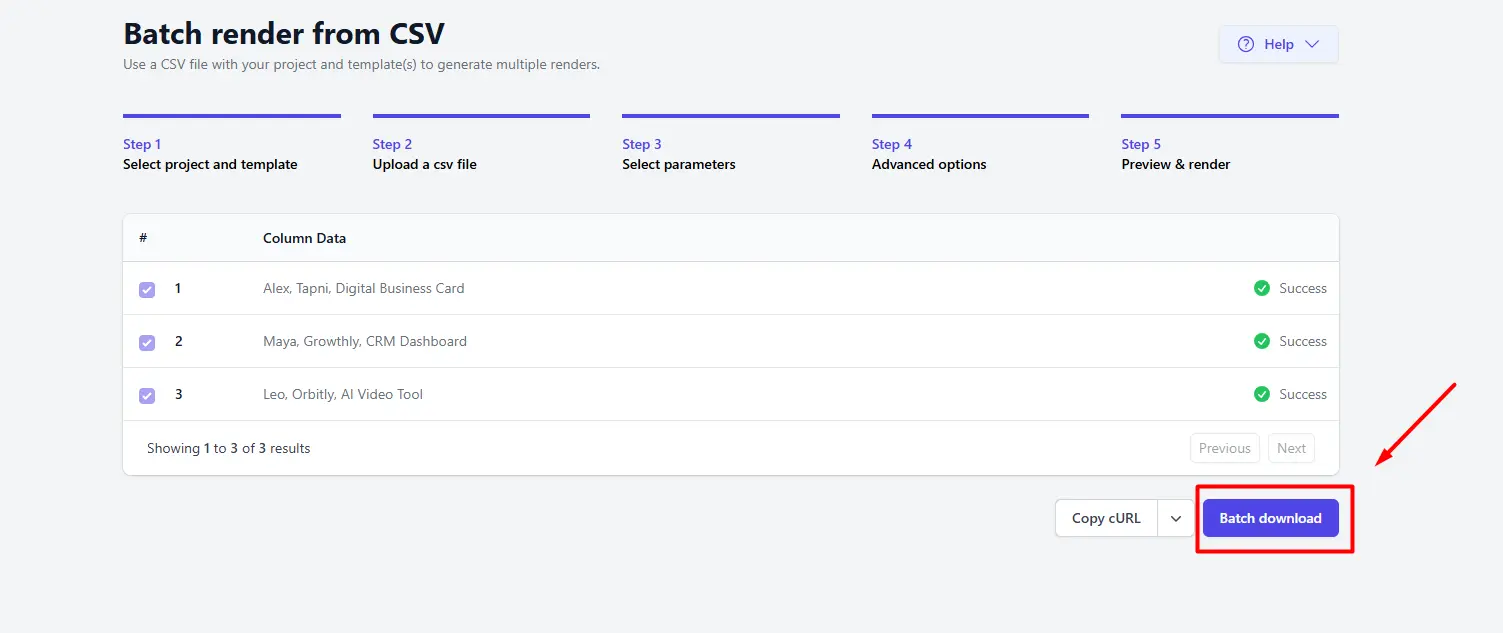
Instead of opening After Effects for every version, swapping text manually, replacing assets, and exporting one by one, you let Plainly generate all versions automatically.
We recommend testing with a few examples first. Render a small batch, check that every field is mapped correctly, and then move to the full run.
Download or distribute your videos
When rendering is done, you can download the finished videos directly from Plainly. This works well if your team wants to review the files manually or upload them somewhere else. But you can also automate delivery.
If you are using API or integrations, you can connect Plainly to your existing tools, databases, or workflows and send finished videos wherever they need to go. That could be your Google Drive, Dropbox, Slack, Frame.io, or any other app we integrate with seamlessly.
Ultimately, the best delivery method depends on your use case. Some teams want recap videos stored in their product. Others want them sent to customers automatically. Either way, the idea is the same: create your template once, render in bulk, and distribute videos without much manual work. So, do you want to make a recap now?
Time to automate your recap videos
Automated recap videos make it much easier to turn product data, user activity, or campaign results into ready-to-use videos at scale. Instead of editing each video manually, you build one template in After Effects, connect your data in Plainly, render versions in bulk, and deliver them wherever you need them to go.
That is what makes this workflow so powerful. You keep the creative control of After Effects, but remove the repetitive production work that slows teams down and potentially costs more.
If you want to create automated recap videos without building the entire process from scratch, start a free trial with Plainly today or book a demo to build your own, personal recap video maker.