How to automate your video production [Complete guide]


Summarize with





Automating video production means creating multiple videos from a reusable template and data, without having to manually edit each version. Think about it: you've just finished editing a video, and it looks exactly how you imagined. But now you need 100 more versions, each with different text, images, or customer details.
Would you really want to go through the entire editing process another 100 times? We didn’t think so. And you're not alone. According to Wyzowl's State of Video Marketing 2026, 91% of businesses use video as a marketing tool, while 63% of video marketers have already used AI to create or edit videos.
Clearly, the demand for video isn't slowing down. But creating more shouldn't mean spending more hours in editing software.
That's where video automation changes the game. With the right tools, you can automate video creation, produce hundreds of personalized variations, and leave the repetitive work to software while your team focuses on the creative decisions.
In this guide, we'll explore what video automation actually means, look at real-world examples, and show you how to automate video production with Plainly Videos in six practical steps. So, grab your pen and let’s get into it.
What does automating video production actually mean?
Automating video production means replacing repetitive, manual steps with software that generates videos based on predefined rules, templates, or data. Instead of treating every video as a separate project, you build a repeatable process that handles the parts you would otherwise do over and over again.
For example, imagine you're running an e-commerce business with 500 products. Each product needs a promotional video featuring its name, image, price, and a short animation.
With traditional video editing, your team would have to create or update 500 individual videos. With automation, you design one master template, connect a spreadsheet containing your product information, and generate a unique video for every product.
The design stays consistent. The product details change automatically. Of course, not every part of the production process can or should be automated.
There are two main approaches worth distinguishing here:
- Template-based automation: Uses predefined designs and structured data to generate different versions of a video. It's ideal for product videos, personalized messages, dynamic ads, sports graphics, and other repeatable content.
- AI-powered automation: Uses AI to assist with tasks such as generating a script, transcribing footage, creating voiceovers, adding subtitles, or identifying clips worth keeping. These tools can speed up production, but their output often needs human review.
And you can combine both approaches. For example, AI can help prepare personalized text, while a template-based system turns that text into hundreds of branded videos.
However, a documentary, a cinematic brand campaign, or a YouTube video built around original storytelling still needs human judgment. An automatic video editor can handle certain editing tasks, but creative direction, pacing, and storytelling shouldn't be left entirely to software. AI slop is a big no, if you’re serious about your brand.
The goal isn't to remove people from the creative process. It's to remove the repetitive work that keeps them from doing their best creative work.
Examples of automated video production
Video automation sounds useful in theory, right, but what does it actually look like in practice? Well, it can be as simple as turning a spreadsheet into hundreds of product videos or as advanced as generating personalized campaigns for thousands of customers.
Let's look at five examples that show how businesses are already putting it to work.
1. Spreadsheet to video
Imagine you're managing marketing for a real estate agency with 300 active property listings. Every property needs a short promotional video showing its photos, location, price, and key features.
Creating each video individually would be exhausting. And by the time you finish, some listings will probably need updating. Instead, you can connect a Google Sheets or Excel spreadsheet to a video template using Plainly and discover the advantages of the spreadsheet-to-video workflow.
Each row contains information about a specific property, while the template determines how that information appears in the final video. Plainly then generates a separate video for every row, automatically replacing the text, images, and other dynamic elements.
The same approach works really well for e-commerce product catalogs, event announcements, educational content, and any other videos built around structured data.
2. Personalized thank-you videos for customers
A generic thank-you email is easy to send. A video that shows someone exactly what they've accomplished or contributed? That's a completely different experience.
Personalized thank-you videos use customer information, such as names, purchases, donations, or milestones, to make each recipient feel recognized. And they don't have to be created one by one.
Take UNICEF Australia, for example. The organization wanted to move beyond traditional thank-you emails and show donors the real impact of their contributions. Using Plainly, UNICEF created 20,000 personalized videos, each highlighting the projects a donor supported, the badges they'd earned, and their contribution relative to other supporters.
The team used a single Adobe After Effects template and a CSV file containing donor information to generate all the variations. The result? An 8% increase in donations, along with a more personal way to connect with supporters.
3. Dynamic video ads
Running one video ad across different markets is straightforward. But what happens when every location, franchise, or audience segment needs a slightly different version? That's where dynamic video ads come in.
These ads automatically adjust specific elements, such as locations, offers, company names, or visuals, based on the data you provide. The core design remains the same, but each version speaks to a different audience.
For example, Anywhere Real Estate needed customized marketing videos for its franchisees across different locations. Previously, the team had to manually replace company names and URLs for every variation. With Plainly, they automated those changes and rendered hundreds of personalized video ads in minutes.
The campaign went on to generate more than 1,100 downloads of the customized content. And the best part? Anywhere now has a repeatable setup it can reuse for future campaigns instead of rebuilding everything from scratch.
4. Sports highlights videos
Sports content has one particularly unforgiving requirement: timing. Fans want to see match results, player statistics, and key moments while the excitement is still fresh, not three days later. But producing videos for every match, player, and team can quickly overwhelm a small creative team.
With automation, sports organizations can connect match data, scores, player information, and selected footage to predefined video templates. For example, once a football match ends, the system can generate branded videos featuring the final score, top performers, or individual player statistics.
AI can also help identify interesting moments from hours of footage, while template-based tools like Plainly handle the graphics and data-driven video variations. That means teams can distribute timely, consistent content across social media platforms without recreating every graphic or video clip from scratch.
5. Customer engagement videos
Sometimes, customers are just one small push away from making a purchase. Maybe they added a product to their cart but never checked out. Or they explored a service, customized their order, and disappeared.
Instead of sending another generic reminder, you can use personalized videos to bring customers back. That's exactly what Tapni, a company specializing in NFC digital business cards, decided to do.
Customers could design their own business cards by choosing colors, logos, and layouts. However, many abandoned their carts before completing the purchase. Tapni used Plainly to create an automated process that generated a personalized video showing each customer the exact card they'd designed.
Whenever someone abandoned checkout, the system used their design data to render a unique video and send it through a follow-up email. The result was a 10% increase in conversions among customers who abandoned their purchases. And once the setup was complete, Tapni could keep running the process with minimal manual involvement.
These examples all have one thing in common: the businesses weren't trying to replace creativity. They were using automation to scale something they'd already designed. And that's exactly where you should start, too.
How to automate video production in 6 steps
You don't need a complicated production setup or a team of developers to automate your video creation process. You need a repeatable video concept, a reusable design, and the right video automation software to connect your design to your data.
With Plainly, you can build your video in Adobe After Effects, define which elements should change, and generate hundreds or thousands of variations through cloud-based rendering.
Let's walk through the entire process, from choosing your first video to distributing the finished results.
You can watch a video tutorial, but we will go through the process, step by step, below.
Step 1: Decide what videos to automate
Before opening any video editing software, look at what your team is already producing. Are you creating a new product video every time an item enters your catalog? Updating promotional ads for different cities? Sending similar customer messages with only a few details changed?
These are strong candidates for automation because their structure stays consistent while certain elements change.
Start by answering three questions:
- What's repeated? - Identify videos with the same layout, animations, and overall structure but different text, images, or other details.
- How many variations do you need? - Producing 200 versions every month makes a stronger case for automation than creating three unique videos per year.
- How often will you repeat the process? - Consider whether you'll generate videos daily, weekly, monthly, or whenever new data becomes available.
For example, imagine an e-commerce team that launches 50 new products every week. Each product gets a 15-second promotional video featuring its image, name, price, and a call to action. That's 200 videos in a typical four-week month, all following the same design.
Rather than starting with every type of video your company produces, we recommend choosing one recurring use case like this. Once you've successfully automated it, you'll have a solid foundation to scale video production without increasing your team's workload with every new project.
Step 2: Create your master template
Now that you know what you're automating, it's time to create the design that all your videos will follow. Think of your master template as the foundation. The animations, transitions, branding, and overall structure stay consistent, while selected elements change for each version.
For Plainly, you'll create this design in Adobe After Effects, the industry standard and learn all about the magic of After Effects automation.
Let's continue with our e-commerce example. Your 15-second product video could contain:
- An opening animation featuring your company logo.
- A product image that changes for each item.
- The product name and price.
- A short promotional message.
- A closing call to action.
The important part is deciding which elements should remain fixed and which should be dynamic. For example, your logo animation and background music can stay the same across all videos. Meanwhile, product images, names, prices, and promotional messages will be replaced using your data.
Make sure your design can accommodate these variations. A product name with three words might look perfect, but what happens when the next product has a 12-word name? Test different text lengths, image dimensions, and other variable elements before moving forward. This preparation helps you avoid fixing hundreds of generated videos later on.
Step 3: Upload your template to Plainly
Once your After Effects design is ready, you need to bring it into Plainly and tell the platform which elements can change.
First, create an account and upload your After Effects project, including any required assets. Plainly analyzes the project so you can configure it for automated rendering.
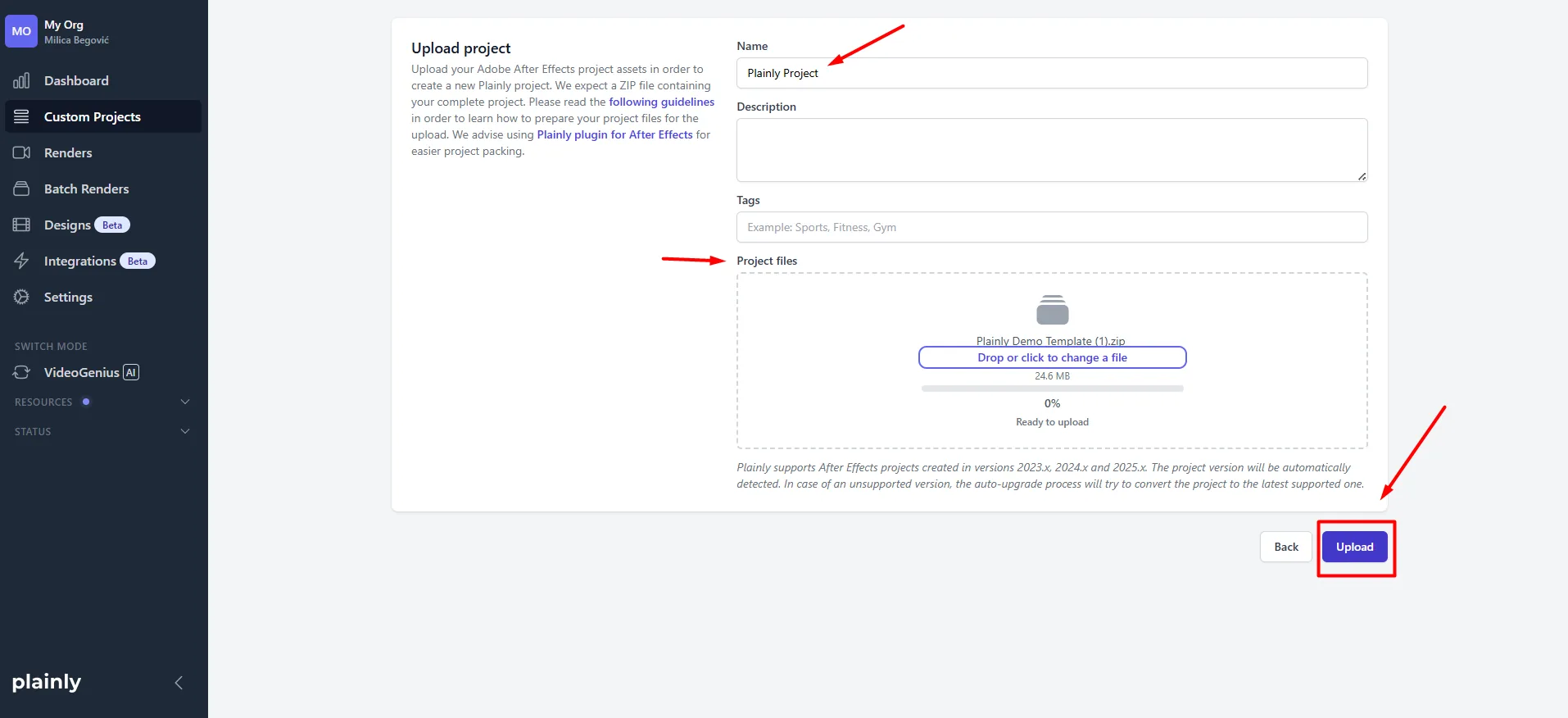
Next, create a Plainly template by selecting the composition you want to render and defining its dynamic layers. This process is called parametrization.
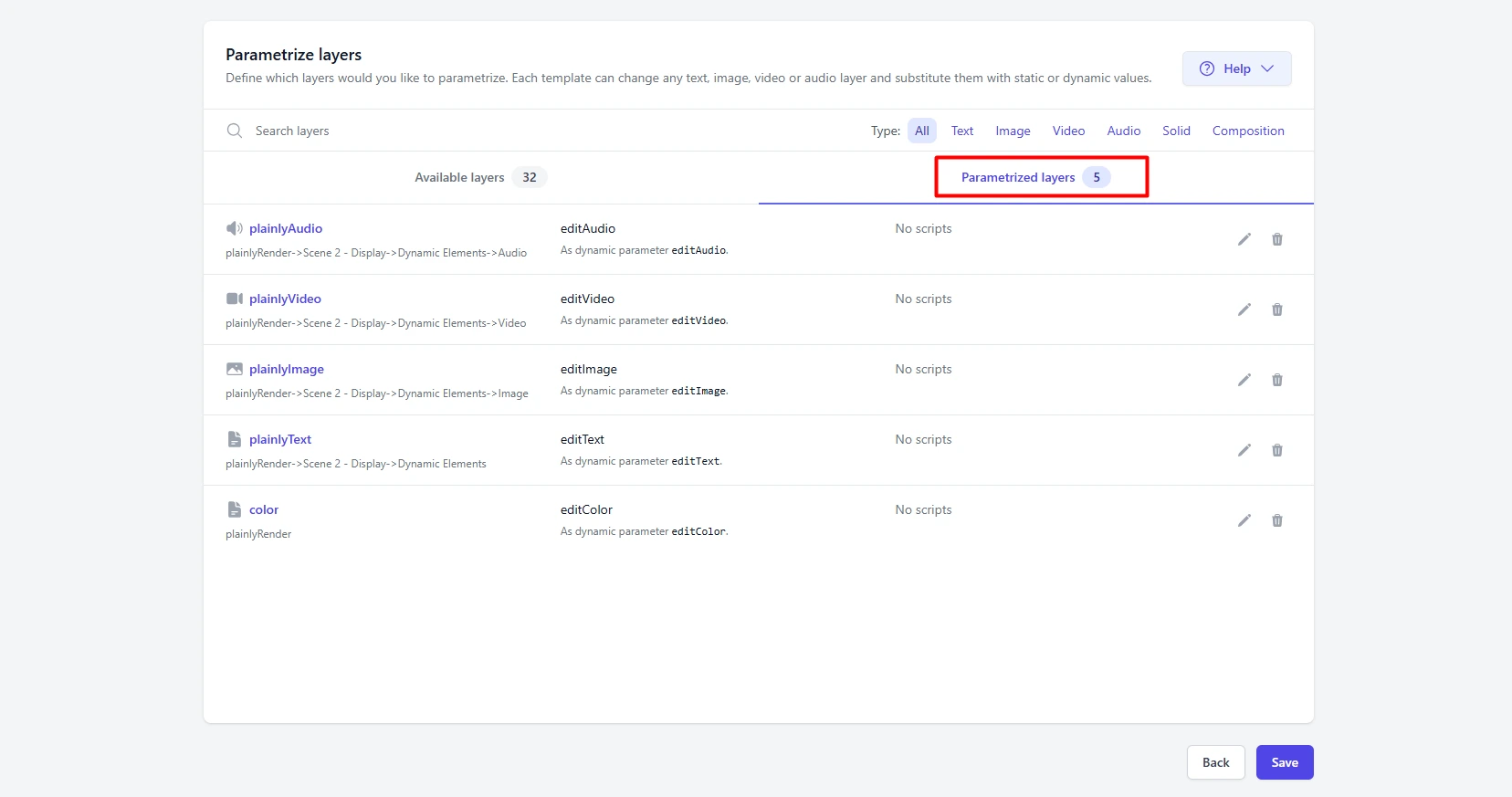
For our product video, you'd select the layers containing the product name, image, price, and promotional message, then assign parameters to each one. For example, you could name your parameters:
- product_name
- product_image
- product_price
- promotional_message
These parameters will act as placeholders for the information you provide in the next step. You can also make other elements dynamic, including colors, audio, and video footage, depending on your design.
Once you've configured the template, the creative setup is essentially complete. You won't need to reopen After Effects every time a new product arrives. Plainly can use the same project to generate new variations with different data.
Step 4: Connect your data
This is where your master template starts becoming a repeatable content engine. Plainly needs to know what information to place inside each video. You can supply that information through a CSV file, native integrations, or its API.
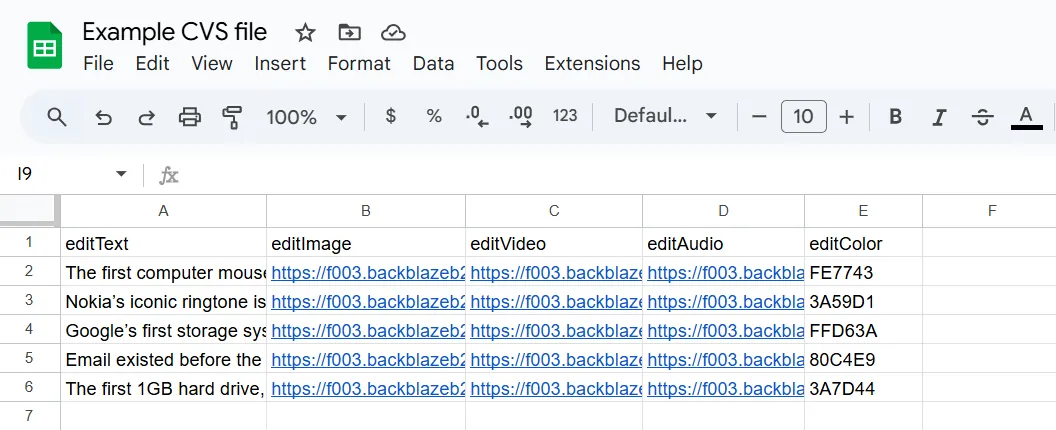
For your first batch, a CSV file is a safe bet. You can prepare one in Google Sheets or Excel, with each row representing a different video and each column containing a value you want to change. For our e-commerce campaign, the data might look like this:
Each row provides the information for one unique video. Once your spreadsheet is ready, export it as a CSV file.
Now, let's connect your CSV file to Plainly:
- Go to Batch renders: Open Plainly, navigate to Batch renders, and click New batch from CSV. Select your project and template, then hit Next.
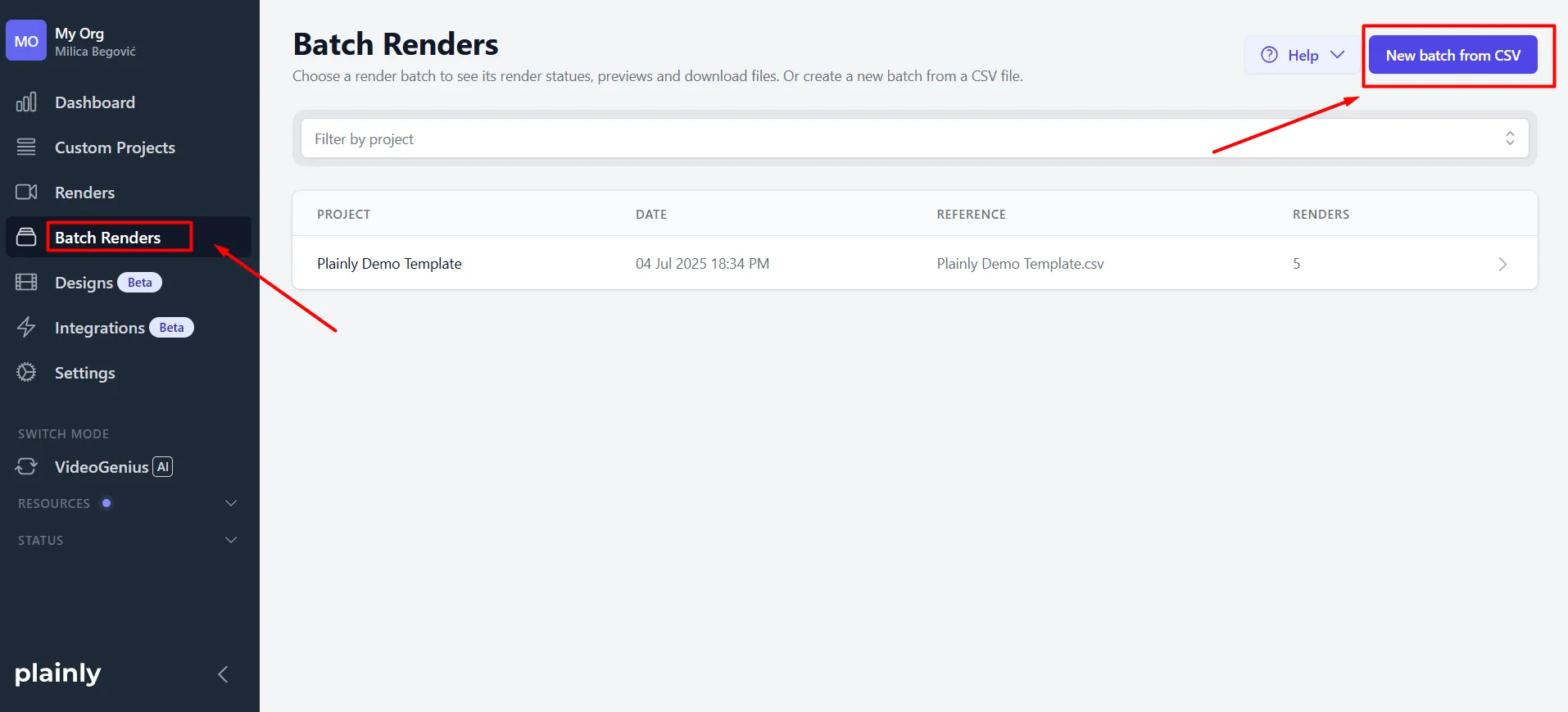
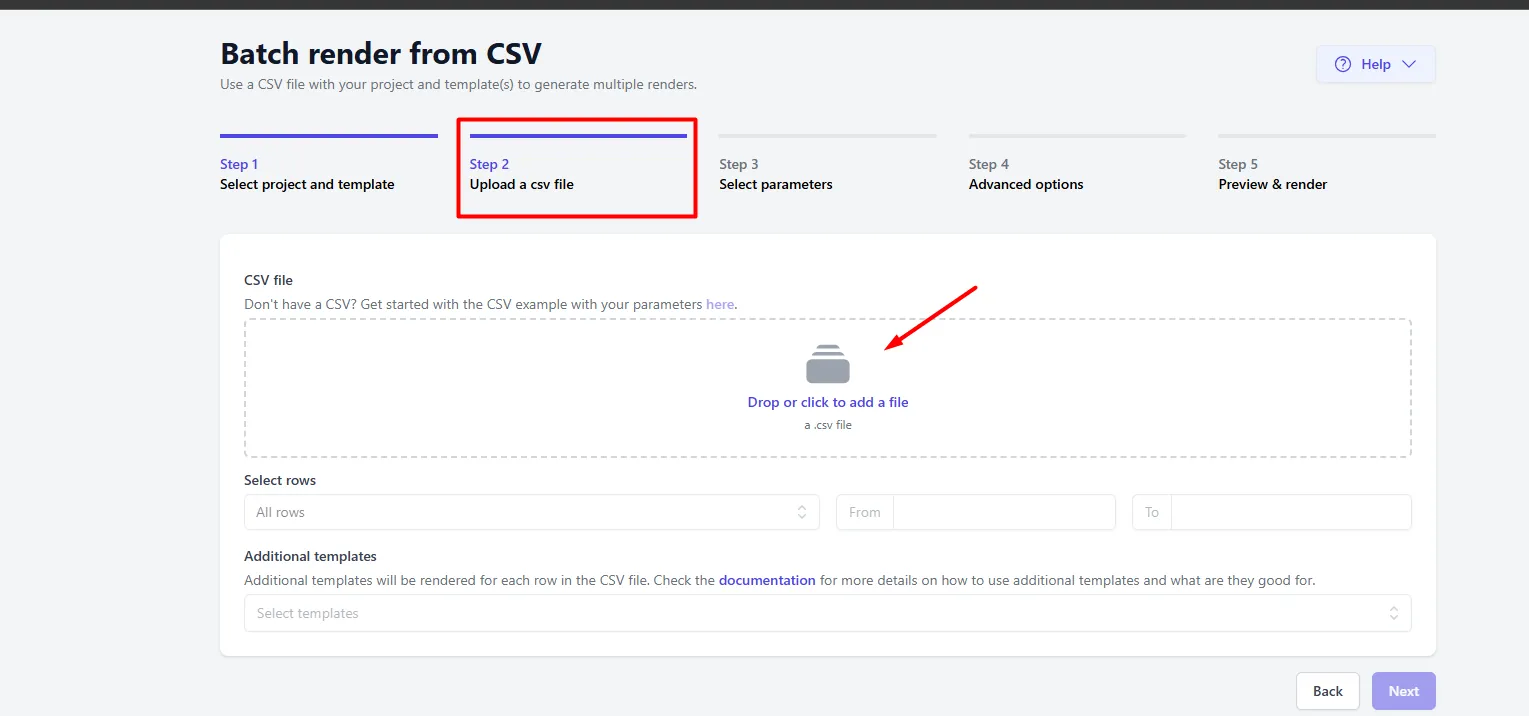
- Upload your CSV: Add the CSV file you prepared earlier. Each row represents a new video, so make sure all your product information is in place before continuing.
- Use Auto link: On the mapping screen, click Auto link. Plainly will automatically match your CSV columns to the corresponding parameters in your template, provided their names match. For example, product_name connects to the product name parameter, while product_image connects to the product image parameter.
And that's it! Your data is now connected to your template, with each row ready to become a separate video.
If you're unsure about column names, Plainly also lets you generate a sample CSV based on your template, so you don't have to figure out the structure yourself.
Once everything is mapped, each row becomes a separate render request. And when you're ready to move beyond CSV uploads, you can connect external systems directly.
For example, you could use Zapier in a no-code automation setup to trigger new renders whenever a product is added to your database. Developers can also use Plainly's API for custom integrations. That way, new videos can be created whenever your data changes, without manually preparing another spreadsheet.
Step 5: Render your videos
You've built your design, configured the dynamic elements, and connected your data. Now comes the satisfying part: generating the videos.
Before launching the full batch, we recommend rendering a few test variations. Choose products with different image dimensions, long names, and varying prices. This helps you catch problems like overflowing text or awkward image placement before producing hundreds of files.
Once everything looks right, return to the Batch Render process and submit your CSV data. Plainly handles the rendering in the cloud, replacing the dynamic elements with the values from each row. So, instead of opening After Effects and exporting 200 individual files, you're submitting the entire batch through one interface.
You can monitor progress from Plainly's dashboard, where you'll see which renders are pending, processing, completed, or unsuccessful. The total processing time depends on factors such as video length, project complexity, batch size, and your plan's concurrent rendering limit.
And because Plainly uses cloud infrastructure, you don't need to keep your computer running After Effects while every variation renders locally. Once the batch finishes, you'll have a collection of individual videos, each containing the correct product information.
Step 6: Download and distribute your videos
Your videos are ready. Now you need to get them in front of the right audience. Plainly lets you download individual videos from their render details pages or download completed batches together.
For a one-time campaign, that might be all you need. But if you're producing new videos every week, manually downloading and distributing each batch can become another repetitive task. That's why Plainly also supports automated video delivery through integrations, webhooks, and external storage services.
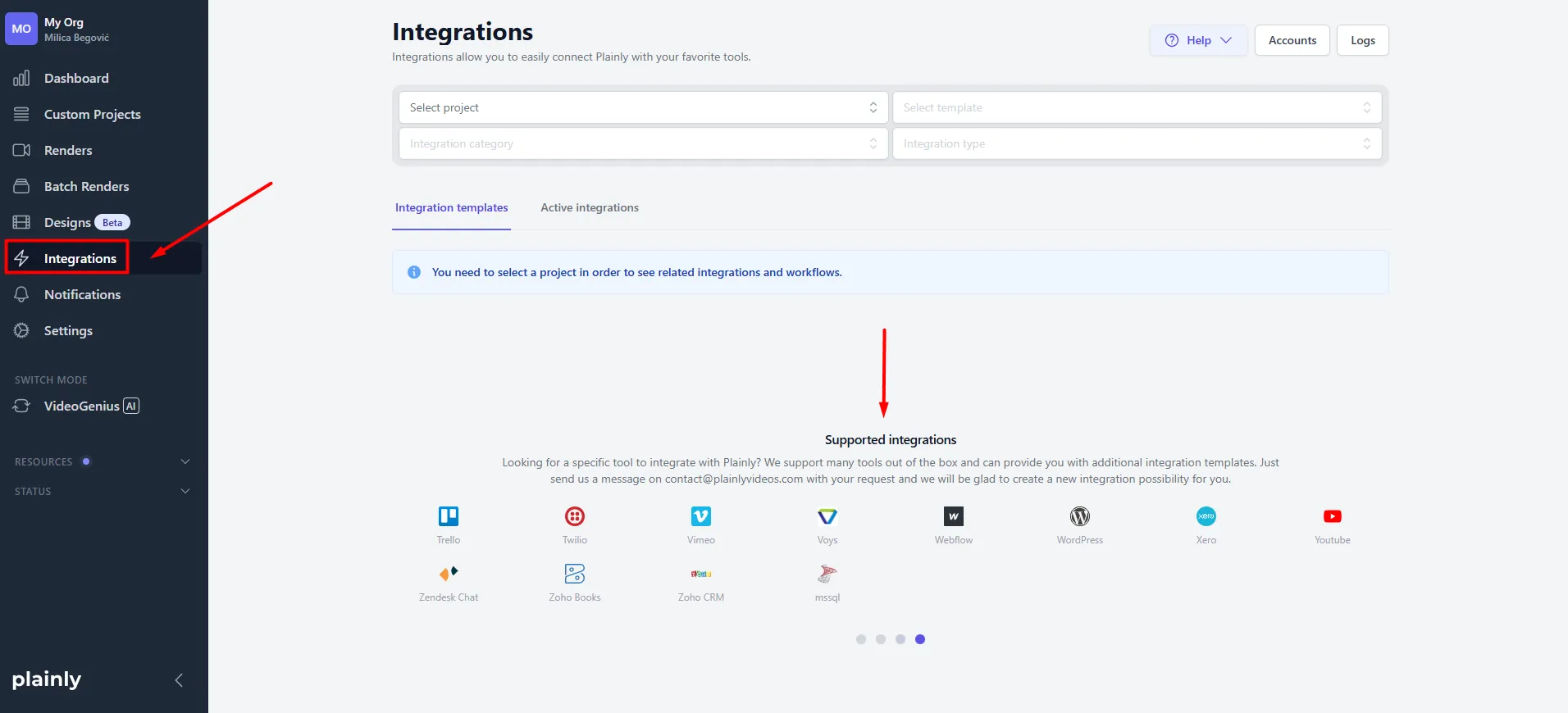
For example, you could set up a process where:
- A new product is added to your database.
- Plainly receives the product information and generates its promotional video.
- The finished video is delivered to your connected storage or another service.
- Your marketing team receives the file or a link for publishing.
You can then use your preferred publishing tools to schedule or automatically post the videos across social channels and different platforms.
Just remember that generating a video and publishing it are separate actions. If you want an entirely hands-off process, you'll need to connect Plainly to the services responsible for distribution.
And that's the bigger opportunity here. You've gone from manually producing individual product videos to building a system that can handle new variations whenever they're needed.
Your team still controls the creative direction, branding, and messaging. Plainly handles the repetitive production work that comes afterward.
Ready to put your video production on autopilot?
Think back to those 100 videos you needed to create at the beginning of this guide. What once meant hours of duplicating projects, replacing assets, and exporting files can now become a repeatable process. You create the design once, connect your data, and generate as many variations as your campaign needs. Also, keep in mind that you don't have to automate everything at once.
Start with one type of video your team produces regularly. Build a template, test it with a small batch, and expand from there. As your needs grow, you can connect more data sources and integrations to make the entire process even more efficient.
And remember. With Plainly, you can turn your Adobe After Effects designs into high-quality videos at scale, without sacrificing creative control or spending your days on manual editing.
Whether you're producing personalized customer messages, dynamic ads, or hundreds of product videos, the idea stays the same: let software handle the repetition so your team can focus on the creative work. Isn’t that the dream?
So, if you want to experience video production on autopilot, book a demo with Plainly and see how you can turn your existing video designs into an automated production process.